

- Compatible XF 2.x versions
- 2.3
- License
- Use limited to one site per license
- Updates duration
- 12 Months
- Visible branding
- No
Introduction
M2N Locations brings powerful location-based functionality to XenForo, allowing your members to add real-world locations to threads and browse that content on interactive Google Maps in the forum.The addon has been designed, coded and tested by humans for communities where location adds value to discussion, discovery or organisation. It can help members find relevant content nearby, explore threads visually, understand where a discussion is based, and move easily between a map-based view and the familiar XenForo thread list.
M2N Locations supports two flexible ways of working. In one mode, a location can be added to a thread when it is useful, without making it a requirement. In the other, the location becomes a central part of the thread creation process, helping to structure threads around specific real-world places.
Forum-level maps allow visitors to explore threads visually, discover what is nearby, filter markers by thread prefix, and move easily between the map and the normal XenForo thread list. Thread-level maps show the individual location connected to a thread, with familiar Google Maps controls and optional Street View support.
Admins have detailed control over how locations are used and displayed. You can choose how maps appear in each forum, define default map positions and zoom levels, style markers using prefix colours, Font Awesome symbols or custom graphics, show or hide child forum locations on parent maps, customise the location field wording, and enable approximate location privacy where exact addresses should not be stored or displayed.
M2N Locations is designed to feel familiar to users, flexible for admins, and powerful enough to support a wide range of commercial, community and directory-style location features.
It has been in use on AVForums.com and MGEVs.com for some time.
Contents
What can M2N Locations be used for?Main concepts
User experience
Map display options
Prefixes and marker styling
Configuration
Permissions
Recommended configuration examples
FAQ
What can M2N Locations be used for?
Optional location mode is ideal for:- classified adverts and local collection listings
- wanted, swap or giveaway threads
- local recommendations and advice
- member meet-ups and events
- "help wanted near me" discussions
- travel, venue and place-based experiences
- hobby locations such as photography, cycling, walking or drone flying spots
- business, dealer, installer or service directories
- venue, shop, club or facility listings
- event locations and regular meeting places
- public points of interest and local resources
- travel, leisure, tourism and accommodation guides
- hobby maps such as photography spots, campsites, fishing locations or historic sites
- specialist community directories where each thread represents a real-world place
Main concepts
Optional location field
The location is optional. It works like a custom thread field below the message text box. An example would be classified advert threads, where advertisers can add their approximate location if they wish. A map of advert locations can then be viewed in the forum.Location-led threads
The location is a key part of every thread. In this mode, the thread is based around a specific place. The location is entered first, before the thread title, and used to automatically generate the editable thread title using a template. This mode is suitable for directories, car dealers, venues, event locations, places of interest, meet-up spots, EV chargers, shops, or any forum where each thread is associated with a specific location.For Location-led threads, selecting a location populates the thread title with the location name and partial address. This is customisable using a per-forum template.
User experience
M2N Locations is designed to make adding, browsing and discovering location-based threads feel natural to forum members. The location entry process uses familiar Google Maps search behaviour, while the maps themselves use standard Google Maps controls that most users already understand.Browsing a location forum
When viewing a location-enabled forum, members can browse threads in the normal XenForo thread list, view them on a map, or switch between the two depending on how the forum has been configured.Admins can choose from three forum display styles:
- Thread list first, map second - best for forums where the normal discussion/listing view remains the main focus.
- Map first, thread list second - best for directories or location-led forums where the map is central to the experience.
- Map above thread list - best when both the map and the thread list should be visible together.
Where thread prefixes are used, the map can visually distinguish between different types of content. For example, a dealer directory could use different prefixes and marker styles for "Sales & Service", "Sales only" and "Service only", while a classified forum could use prefixes such as "For Sale", "Wanted", "For Exchange" and "Deal Agreed".
The map legend and prefix filtering make it easier for users to focus on the types of threads they are interested in.
Viewing thread information on the map
When a user clicks a marker on the forum map, a pop-up displays key information about the thread at that location. This allows users to quickly assess whether the thread is relevant before opening it.The pop-up can show the thread title, location, forum or category, thread prefix, author, date, reply count and view count. The thread title is clickable, allowing the user to go directly from the map to the full thread.
Where multiple threads share the same location, the marker displays the number of listings at that point. This can happen when several threads use the same place, or when approximate location mode groups nearby threads into the same general area.
Clicking a grouped marker opens a pop-up showing the threads at that location in a scrollable list. Each listing can include its prefix, title, author, date and activity information, making it easy for users to browse several nearby or grouped threads without leaving the map.
This makes the map useful not just as a visual overview, but as a practical way to discover and open relevant threads based on location.
Viewing a thread with a location
When a thread has a location, a map is displayed on the thread page. This gives visitors immediate context for where the thread is based.Depending on the forum settings, the thread map may also include Street View controls, map/satellite toggles, fullscreen controls and a directions button. This is especially useful for public locations such as businesses, venues, dealerships, shops, event locations or places of interest.
For privacy-sensitive forums, such as classified adverts, the location can be displayed approximately rather than exactly. This allows users to show the general area without exposing a precise private address.
Adding a location to a thread
Adding a location is straightforward.The user starts typing a place name, address, postcode or business name into the location search box. Google Maps suggestions appear as they type. The user then selects the correct result from the list.
A location is only saved once the user has selected a result from the Google Maps suggestions. This helps ensure that the location can be correctly mapped, rather than relying on free-text input that may be ambiguous or incomplete.
After a location is selected, the addon displays a map preview and, where enabled, a Street View preview. The user can check that the correct place has been found before submitting the thread.
Where Street View is enabled, the user can also adjust the map and Street View elements so that they better represent the location before saving.
Optional location mode
In Optional location mode, the location field appears as an additional field when creating or editing a thread like a custom thread field.This mode is ideal when location is useful but not essential. For example, in a classified advert forum, a seller may choose to add an approximate location so buyers can see where collection might take place, but the advert can still be posted without a location.
Admins can customise the location field label, helper text and button text on a per-forum basis, allowing the wording to match the purpose of the forum.
Location-led thread mode
In Location-led mode, the location is the starting point for the thread.The location search box appears before the thread title. The user selects a location first, and the addon can then generate the thread title automatically using a configurable title template.
For example, selecting a dealership or venue could automatically create a title such as:
Arnold Clark Car & Van Rental (Edinburgh, United Kingdom)
The user can then edit the title if needed before posting.
This mode makes it easier to keep thread titles consistent, reduces manual data entry, and encourages users to create threads that are structured around accurate map locations.
Editing a location
If a user needs to change the location, they can edit the thread and search for a new location. Selecting a new Google Maps result updates the stored location data and refreshes the map preview.Privacy and approximate locations
For forums where users may enter private addresses, the addon can be configured to store and display only an approximate location.When approximate location mode is enabled, the selected address is converted into a general location within a configurable radius. The exact address is not shown on the map. Instead, the marker is represented by an approximate area, helping users share useful location context while protecting their privacy.
This is particularly useful for classified advert forums, where sellers may want to show that an item is available in a general area without revealing their exact address.
Familiar controls and low friction
The user experience is intentionally familiar. Members search for locations in the same way they would in Google Maps, interact with maps using standard Google controls, and continue to create and browse threads in a way that feels native to XenForo.For admins, this means location functionality can be added to suitable forums without requiring members to learn a completely new way of using the site.
Map display options
Forum map display options
Admin can choose:- Tabbed: Thread list first, map second (most like normal XenForo forum view)
- Tabbed: Map first, thread list second (brings the map front and centre)
- Map above thread list (shows the map above the list of threads)
Prefixes and marker styling
Prefix setup
Prefix setup doesn’t change from normal forum use. Prefixes are used to differentiate between thread types. Considerable thought needs to go into organising prefixes so that they make the most logical sense for users. Multiple prefixes are not supported.Custom prefix colours
If you wish to create your own prefix colours, when setting up a thread prefix, set the Display styling to Other and enter a custom style class. E.g.And then edit extra.less template to add that class. E.g.
Marker colours
Each thread with a location has a marker on the map. The marker uses the styling from the prefix.
- It uses the background colour for the pin
- It uses the text colour for the symbol
Marker symbol graphics
Admin may use two different options to change the marker symbol:- Font Awesome icon - type the name of the icon and select the search results.
- Custom, uploadable graphic. The graphic will be sized to fit in the marker. We recommend using an SVG file as this will then be recoded to match the symbol colour.
Replacement marker graphic
Admin can upload an image file to use as the entire marker. Again, an SVG is recommended for maximum quality.Example
Here is an example of the use of a combination of custom prefix colours and a custom SVG icon.Thread prefixes display the SVG graphic. The Markers display the same graphic for the symbol.
This gives consistency between viewing threads and the map.
Configuration
Quick start: setting up your first location forum
Suggested steps:- Install the add-on.
- Create or obtain a Google Maps Platform API key.
- Enable the required Google APIs.
- Add the key in Setup > Options > External service providers.
- Create or edit a forum node.
- Change the forum type to Location.
- Choose Optional location or Location-led thread mode.
- Configure the default map centre and zoom.
- Configure map display.
- Test by creating a thread with a location.
Global options
Once installed, there are two global options found in Setup > Options > External service providers./admin.php?options/groups/serviceProviders/
The first is the Google Maps Platform API Key from Google Cloud Platform
which is required for the addon to work.
The specific APIs needed are
- Maps JavaScript API
- Places API
- Geocoding API
- Street View Static API
The second is the Auto-prompt geolocation on map open option which is ticked by default and recommended because it’s useful to automatically centre the map on the user’s location.
Node settings
A new forum type, Location, is used to enable location functionality for a forum.Once a forum is set to the Location forum type, additional settings become available. These control how the map behaves, how locations are entered, how precise stored locations should be, how markers are styled, and how the location field is labelled for users.
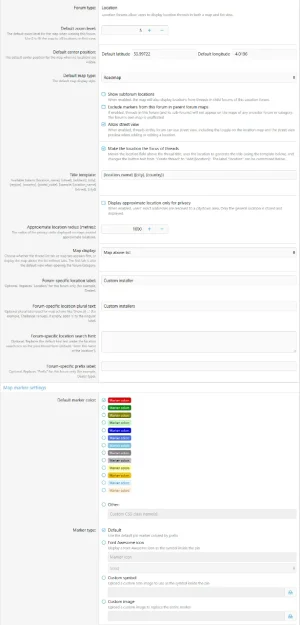
Setting | What it does | When to use it |
| Default zoom level | Sets the initial zoom level for the forum map. | Use a lower zoom level for country-wide or regional maps, and a higher zoom level for local maps. |
| Default centre position | Sets the default latitude and longitude used when the map first loads. | Use the centre of the area covered by the forum, such as a country, region, city or local area. |
| Default map type | Sets the default map display style, such as roadmap or satellite. | Use roadmap for most forums. Satellite may be useful where physical surroundings are important. |
| Show subforum locations | Allows the map to include locations from threads in child forums. | Useful when a parent forum or category should show a combined map of locations from its subforums. |
| Exclude markers from this forum on parent maps | Prevents this forum’s markers from appearing on maps in parent forums or categories. | Useful when a child forum should have its own self-contained map and should not contribute markers to higher-level maps. |
| Allow Street View | Enables Street View tools and previews for locations in this forum. | Useful for public places, businesses, venues and directories. Usually not recommended for privacy-sensitive forums. |
| Make the location the focus of threads | Changes the thread creation flow so the user enters a location before the thread title. The selected location can then be used to generate the thread title automatically. | Enable this for Location-led forums where each thread is based around a specific real-world place. Leave disabled for Optional location forums. |
| Title template | Controls how the thread title is automatically generated when using Location-led mode. | Use this to keep thread titles consistent. |
| Display approximate location only for privacy | Stores and displays a generalised location rather than the exact selected address. | Recommended for private addresses, classified adverts, local collection listings and any forum where exact locations should not be exposed. |
| Approximate location radius | Sets the radius used for the approximate privacy circle. | Use a larger radius for greater privacy and a smaller radius where more accurate location context is needed. |
| Map display | Controls how the forum map is shown in relation to the normal XenForo thread list. | Choose between tabbed list-first, tabbed map-first, or map above the thread list depending on whether the thread list or map should be the primary view. |
| Forum-specific location label | Replaces the default "Location" label for this forum. | Use this to match the language of the forum, such as "Venue", "Dealer", "Installer", "Place", "Event location" or "Collection area". |
| Forum-specific location plural text | Provides custom plural wording for locations in this forum. | Use this when the map or interface needs terminology specific to the forum, such as "venues", "dealers", "installers" or "locations". |
| Forum-specific location search hint | Customises the help text shown near the location search box. | Use this to explain what users should type and whether the location is optional, required, approximate or privacy-protected. It’s helpful to instruct users to select one of the search results. |
| Forum-specific prefix label | Replaces "Prefix" with custom wording for this forum. | Useful when prefixes represent something specific, such as "Advert type", "Dealer type", "Venue type" or "Location type". |
| Default marker colour | Sets the marker colour used when a thread has no prefix or no prefix-specific marker styling. | Use this to ensure unprefixed threads still have a clear and consistent marker colour. |
| Marker type | Controls the marker style used on the map. Options include the default marker, a Font Awesome symbol inside the marker, a custom uploaded symbol, or a complete replacement marker graphic. | Use this to make map markers match the purpose and branding of the forum. If using custom graphics, SVGs are recommended for best quality. |
Also, category nodes have an option to display a map containing locations from child forums.
Permissions
Normal XenForo forum/thread permissions apply, so users will only see location markers for content they are permitted to view.Recommended configuration examples
Classified adverts
- Location mode: Optional
- Approximate location: enabled
- Street View: disabled
- Map display: tabbed or map above list
- Parent maps: probably included if useful
- Label: "Location"
- Help text: "Location is optional. Start typing your address or postcode, then select a result from the Google Maps suggestions. Your exact address will not be shown or stored. It will be converted to an approximate location and shown as a circle on the advert map. Recommended for physical goods."
Venue directory
- Location mode: Location-led
- Approximate location: disabled
- Street View: enabled
- Map display: Map first or map above list
- Parent maps: enabled if forums are divided by area - country/city so that parent maps will include locations from this forum.
- Title template: {location_name} ({city}, {country})
- Label: "Venue"
- Help text: "Type the name of the venue and then select it from the Google Maps search results"
FAQ
How do you get the best default zoom level and centre position (latitude and longitude) values?
They can be read from the data displayed under all maps in the addon. So if you view any map and then zoom and move it to the position you want, you can then copy the values to the default settings for your node. For example, this map is centred on the UK and zoomed to show most of it. The zoom level, latitude and longitude values can be read from the data displayed under the map.Why is a selected Google Maps result required?
Because selecting a result extracts the location data from Google Maps and inserts it into the thread.Why are several listings shown at the same marker?
It is possible for multiple threads to have exactly the same location (as defined by the latitude and longitude coordinates). This is generally unlikely unless the same location has been added in multiple threads (which is best avoided) or, more likely, when approximate locations are used.Can locations be approximate?
Yes, we have a per-forum admin setting to enable approximate locations for privacy and security.Can I disable Street View?
Yes, on a per-forum basis.Can child forum markers appear on parent maps?
Yes if the parent forum has the Show subforum locations option enabled and the child forum has the Exclude markers from this forum in parent forum maps option disabled.Can a forum be excluded from parent maps?
Yes. Use the Exclude markers from this forum in parent forum maps option.Can maps be shown on category pages?
Yes, there is an option in category node edit to enable this.Can Font Awesome and Custom graphics be used in prefixes?
Yes, a useful bonus of the marker styling system is that admins can also enhance their thread prefixes with Font Awesome icons and custom graphics.Which Google APIs are required?
- Maps JavaScript API
- Places API
- Geocoding API
- Street View Static API
How do I use the Location-led title templates?
When a location is selected from the search results in Location-led threads, the thread title text is populated with the location information according to this template. It’s useful to create consistency in the location threads. However, the thread title can be edited by the thread author before creating the thread, so there is full flexibility.Here are some examples using the Arnold Clark example.
Template: {location_name}
Result: Arnold Clark Car & Van Rental
Template: {location_name} ({city})
Result: Arnold Clark Car & Van Rental (Edinburgh)
Template: {location_name} - {street}, {city}
Result: Arnold Clark Car & Van Rental - Seafield Road, Edinburgh
Template: {location_name} - {city}, {country} - Dealer Discussion
Result: Arnold Clark Car & Van Rental - Edinburgh, UK - Dealer Discussion
What are the steps to get a Google Maps API Key?
To use all of the map features, you need a Google Maps Platform API key.- Go to Google Maps Platform:
Google Maps Platform | Google for Developers - Sign in with an existing Google account, or create a new Google account if you do not already have one.
- Open the Google Cloud Console when prompted.
- Create a new Google Cloud project, or select an existing project you want to use for your forum.
- Make sure billing is enabled for the project.
Google Maps Platform requires a billing-enabled Cloud project before the APIs can be used in production. - If you already have a Google Cloud billing account, select it and link it to your project.
- If you do not already have a billing account, create one and add your payment details:
Google Cloud Platform - In the Google Cloud Console, go to APIs & Services > Library.
- Enable the APIs needed by the addon:
- Maps JavaScript API - displays interactive maps on your site
- Places API - finds and selects places from Google Maps
- Geocoding API - converts addresses into map coordinates, where needed
- Street View Static API - displays Street View images, where used
- Go to APIs & Services > Credentials.
- Click Create credentials.
- Select API key.
- Restrict the API key before using it on a live site.
- Under Application restrictions, choose Websites or HTTP referrers.
- Add your forum domain as an allowed referrer. For example:
Code:
https://www.example.com/* - Also add any other domains where the addon will be used, such as a test site or staging site.
- Under API restrictions, restrict the key to the APIs used by the addon:
- Maps JavaScript API
- Places API
- Geocoding API
- Street View Static API
- Save the API key settings.
- Copy the API key into the addon settings in your forum admin control panel.
- Test the map features on your forum.
- If the map features do not work, check that:
- billing is enabled
- the correct APIs are enabled
- the API key has been copied correctly
- the website referrer matches your forum domain
- the API restrictions include all APIs required by the addon
- Monitor usage and billing in the Google Cloud Console, especially after enabling the addon on a busy public forum.


