
You are using an out of date browser. It may not display this or other websites correctly.
You should upgrade or use an alternative browser.
You should upgrade or use an alternative browser.

Immersive Messenger 2.14.0 lets members share community rooms with a link, shows a room live on any page with a new widget, adds your forum's smilies to the emoji picker, and brings GIFs through XenForo's own GIPHY settings.
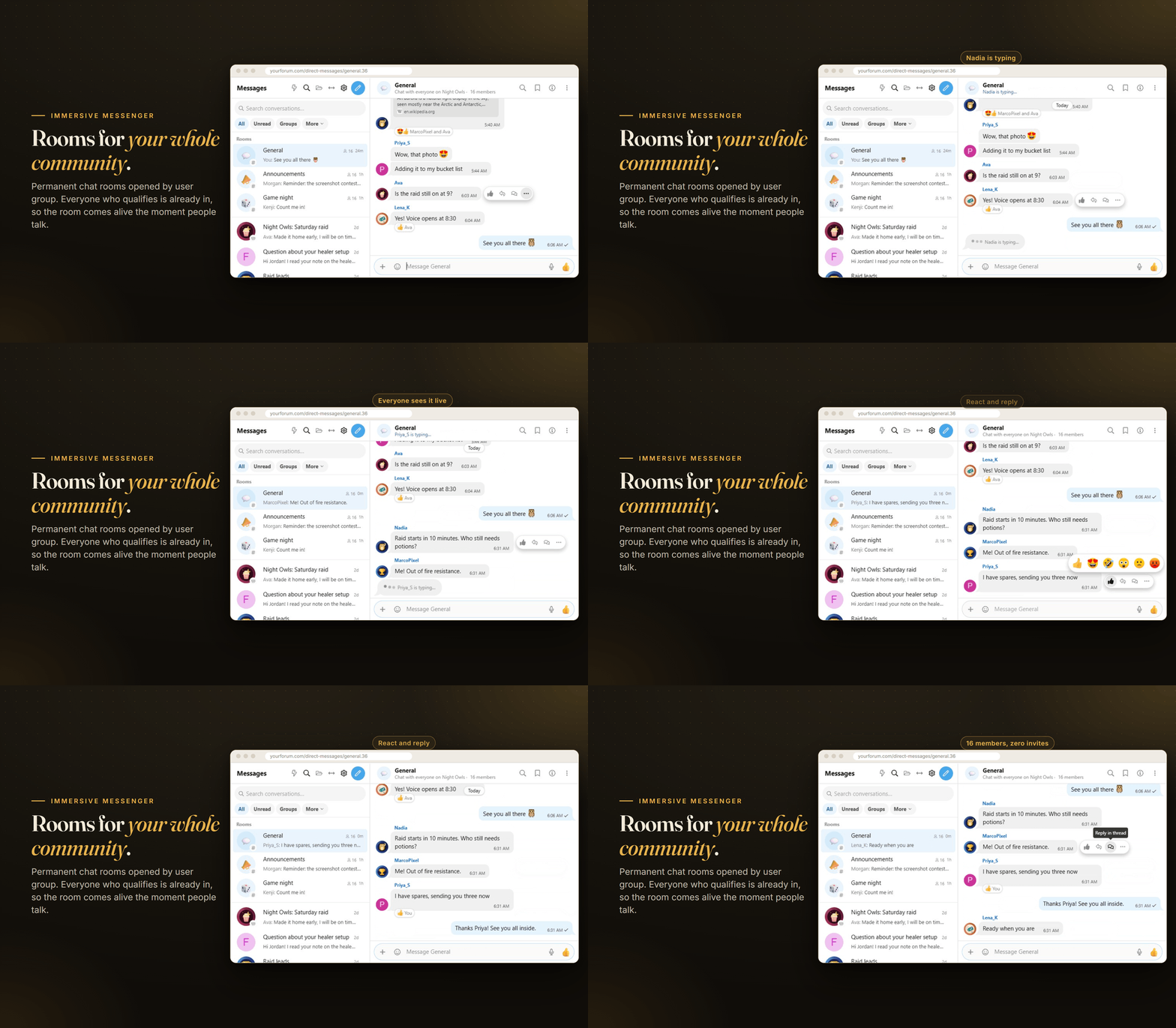
Room links
- A link for every room. Copy it from the room's info panel, or from the room's edit page in the Admin CP.
- It does the right thing. Members already in the room land straight in it. Members who may join an open room see a room card with the latest messages and a Join button. Members outside the room's groups get a clear refusal, and guests are asked to log in.
- Room cards. Paste the link on its own line in a post or a chat and it becomes a card with the room's icon, description, member count and a Join or Open button. Inside Messenger, the card opens the room in place.
A live room widget
The new "Messenger room" widget shows a room on any widget position, such as the forum list sidebar. The latest messages refresh on their own, Open starts a mini window over the page, Join adds the member to an open room, and guests can get a teaser with Log in and Register buttons, never a message.
Your forum's smilies
The emoji picker has a Smilies tab right after Recent, with the smilies your editor already shows. They are searchable and appear as their image in messages.
GIFs with XenForo's GIPHY
A new GIF provider reuses the key from Options > Messages > Enable GIPHY support. Searches go through your forum, so the key never reaches the browser, and XenForo's rating applies. Forums with XenForo's GIPHY on and Messenger GIFs off switch to it on upgrade.
Install the archive over any 2.x version from the Admin CP. Conversations, rooms and settings are kept, and every existing room gets its link straight away.
Immersive Messenger 2.13.0 brings folders to every inbox, handles several chats at once, lets staff wear their forum banners, and makes the effects fire with every emoji style.
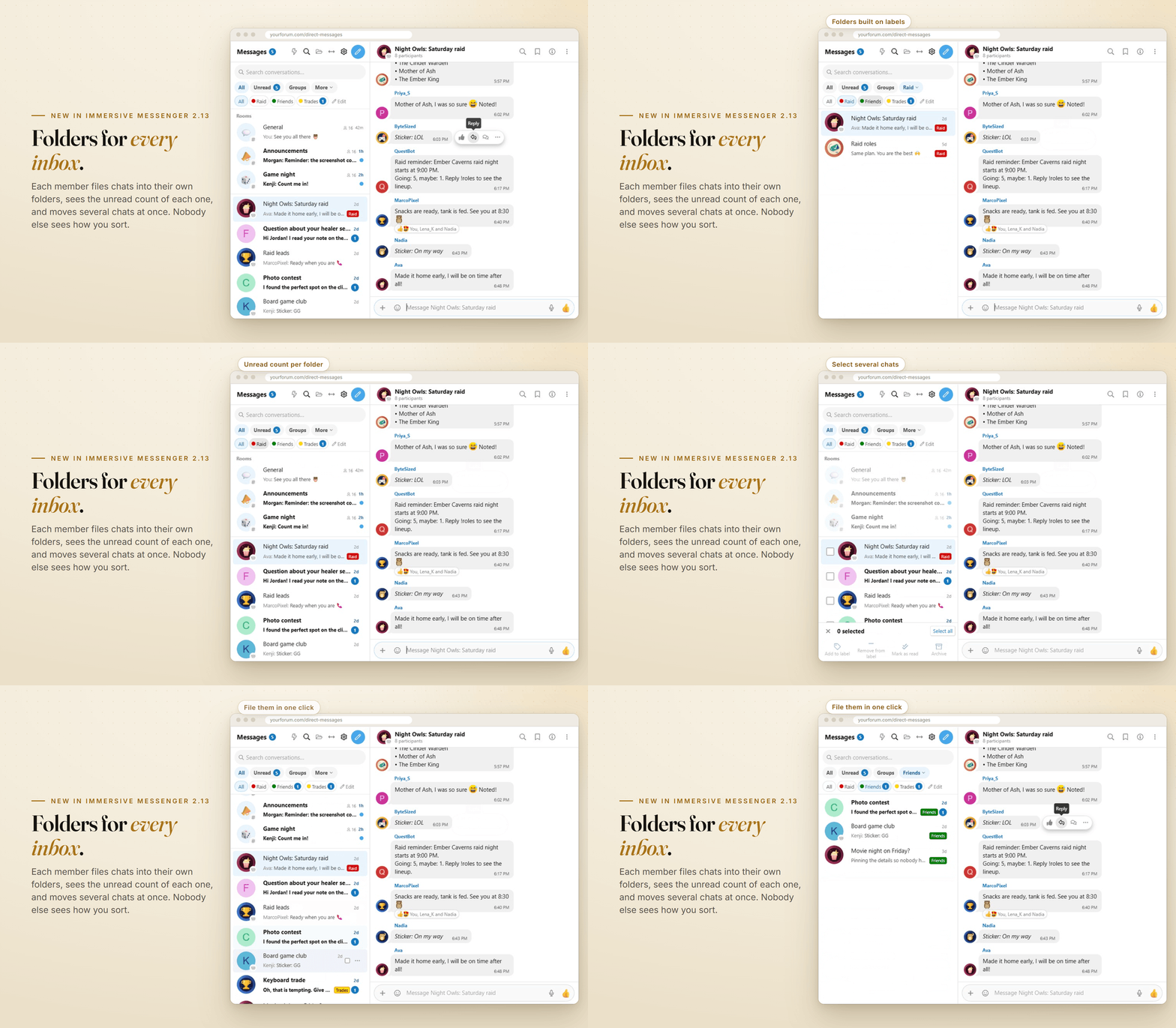
Folders
Several chats at once
- A folder bar everywhere. Under the conversation tabs, on the full page, in the dock and on phones: All, then each of the member's labels with its colour.
- Unread counts that stay live. Every folder shows how many chats wait in it, updated as messages arrive and get read.
- Personal. Folders are each member's own labels: nobody else sees how you sort, and deleting a folder never deletes a conversation. Existing labels show up as folders straight away.
- Your order. Drag folders, or use Move up and Move down. The last folder picked is remembered on each device.
Select mode opens from the More menu, from the menu of a row (a long press on phones) and from the new menu of the dock list. Tick conversations, then add them to a folder, take them out of one, mark them as read or archive them in one go.
Staff wear their banners
Staff carry the banners they wear on the forum (Staff member, Administrator, Moderator or your own) next to their name in chats, in the participants and members lists, and in the header of a one-to-one chat on desktop. They follow your user banner settings, and the new option "Staff badge" brings back the generic badge.
Fixed
Confetti, hearts and word effects now fire on forums that show emoji as images (JoyPixels or Twemoji). The emoji only lived in the image's alternative text, which the effects never read.
Install the archive over any 2.x version from the Admin CP. Conversations, labels and settings are kept.

Immersive Messenger 2.12.0 brings together everything built since 2.8.4: community rooms, a new look for bubbles, mini windows that move on springs and a full pass on phones.
Rooms
- Permanent chat rooms by user group. Create a room in Admin CP > Messenger > Rooms, pick the user groups that can use it, and members are added automatically. When someone gains or loses a group, including through a user upgrade that starts or expires, they join or leave the room on their own. You can also let members join and leave freely.
- Read-only rooms. "Who can post" limits writing to the groups you choose, everyone else reads and reacts. Handy for announcements.
- Quiet by default. Rooms are muted for everyone, so only mentions send an alert. Members can unmute a room to follow every message.
- Everywhere members chat. Rooms sit at the top of the conversation list, open in the dock's mini windows and on phones, and stay in XenForo's own direct message tables.
Bubbles and mini windows
- Bubble tails on the last message of each run, with an option to turn them off.
- Link cards. A shared link shows as a card with a wide picture, a title and the site name.
- Typing bubble. Three dots in a bubble, with the name in group chats.
- "3 new" pill. When messages arrive while you read further up, the jump button counts them.
- Mini windows that feel alive. The header says who is active or typing, windows rise, minimize and close on springs, chat heads can be thrown onto a target to hide them, and a new message lights the window it lands in.
Phones
- A long press lifts the message above the action sheet, Back closes one layer at a time, and sheets rise above the keyboard.
- Pictures open on top with pinch zoom, and every photo of a conversation is one gallery.
- Pasting or wrapping to a second line no longer slides the message field sideways.
Fixes
The emoji picker stays inside its mini window, group calls are reachable from mini windows and the phone sheet, the quick reply in a notification hides when the member cannot post, and a mouse click on the name in a conversation header opens the profile.
Install the archive over any 2.x version from the Admin CP. Your conversations and settings are kept, and Rooms starts empty until you create your first one.
Everything since 2.7.8, in one upgrade. Install the archive over your current version from the Admin CP.
A rebuilt phone experience
- The conversation list and chats fill the screen like a messaging app, in the full page and the floating chat: bottom tabs, a strip of people online, larger avatars, rounder bubbles and slide transitions.
- New gestures: swipe a message to reply, swipe a conversation for Pin, Archive and More, hold a conversation for its menu, and drag a bottom panel down to close it.
- Menus open as bottom panels, tall enough to show most options before scrolling.
- The chat is designed for portrait. With the phone sideways it asks to turn the phone upright, closes the keyboard and keeps what you were writing. The rest of the forum is not affected.
Chat header
- One-to-one chats show the person's avatar and name, with the conversation title in smaller text underneath when it has one. The conversation list keeps showing titles.
- The avatar and name open the member card, or the profile with a mouse click. On phones, the info panel is now in the three dots menu.
- The online dot shows in the floating chat header and mini windows too.
Status choices
A new page under Messenger in the Admin CP lists the suggestions and emojis offered when members set a status. Edit, disable or delete them, add your own and drag them into order. A button restores shipped choices you deleted.
Support mode
A new user group permission, Message any member, which every member group keeps after the update. Members without it can only start conversations and calls with the groups you choose (Administrators and Moderators by default), and the server refuses anything else. Staff keep full access, and existing conversations stay open.
Also new and fixed
- New option to show who started each titled conversation under its title in the list.
- Someone with several conversations now appears once in the strip of people online.
- Status emojis are no longer lost when saving on forums without fullUnicode enabled.
- iPhone: fixed the automatic zoom on the message box with the phone sideways, and the theme's bottom bar staying between the message box and the keyboard.
Three more fixes for phones, from customer screenshots taken on an iPhone.
Install the archive over any 2.x version from Admin CP > Add-ons.
- Sideways with the keyboard open. The keyboard and its toolbar can leave only a very thin strip of screen, where only the chat header fit. The header now steps aside so the message box fits, and comes back when the keyboard closes.
- Upright with the keyboard open. A bottom bar added by your theme could stay between the message box and the keyboard. The chat now covers that bar while you type, or stops above it if the theme keeps it on top of everything.
- No more empty space under the message box. After the keyboard closed, Safari could keep reporting the smaller screen size and the chat stayed short. It now returns to full height as soon as you leave the message box.
Three more fixes for phones, again tested with a customer on a real iPhone. This update includes 2.7.5 and 2.7.6.
Install the archive over any 2.x version from Admin CP > Add-ons. Thanks again to JoyFreak for testing every step!
- The page stays put behind the chat. On iPhone, scrolling inside an open chat could also scroll the forum page underneath, which then froze in an odd position after the chat closed. The page now stays still while a chat is open and comes back exactly where you left it.
- Turn your phone sideways. Turning the phone to landscape used to close the open chat, because the screen became wide enough for the desktop layout. A phone held sideways now keeps the phone layout and the chat simply adapts. On a desktop window that grows past the phone layout, an open chat moves to a mini window instead of closing.
- Typing in landscape. With the phone sideways and the keyboard open, only a thin strip of screen is left, and the message box could end up behind the keyboard. The chat now switches to a compact layout when space is that tight: the pinned bar and notices step aside and the header tightens, so what you type stays right above the keyboard. Everything comes back when the keyboard closes.
A round of fixes for phones, tested step by step on a real iPhone with a customer.
Install the archive over any 2.x version from Admin CP > Add-ons. Thanks to JoyFreak for testing every step!
- The message box always stays in view. In the chat opened from the floating button, the message box could end up behind Safari's toolbar, the keyboard, or a navigation bar that your theme fixes at the bottom of the screen. The chat now fits exactly the part of the screen you can see.
- Full-screen chats on phones. On the full Messages page, an open conversation now fills the screen like a messaging app, so opening the keyboard no longer scrolls the page down to the footer. The list stays inside the page and the back arrow returns to it.
- The latest message stays above the keyboard. When the keyboard opens or Safari's toolbar shows, the conversation keeps its bottom anchored instead of sliding out of view.
- No more jump to the top. The conversation keeps your place after a screenshot or when you come back to the tab.
Four changes, all from customer feedback.
Install the archive over any 2.x version from Admin CP > Add-ons. New privacy settings default to "Members only", so nothing changes until a member decides otherwise.
- Who can call you. Members now choose who can start voice calls and who can start video calls with them, in their Privacy settings right under XenForo's own direct message setting: members, people they follow, or nobody. Call buttons follow the choice, and the server refuses calls that are not allowed.
- Tuck the chat button away. The floating dock button can be pushed against the edge of the screen: a small button appears on hover (always visible on touch screens), or swipe it toward the edge. A slim tab stays visible with the unread count and brings it back with one tap. Each member's choice is remembered on every page.
- Notes to self. A chat with yourself now shows your own avatar, is no longer treated as a group, and its message box says "Message self".
- Status duration. Picking a suggested status no longer replaces the "Clear after" duration you chose yourself.
On boards that also run an add-on extending XenForo's conversation notifications (for example SV Warning Improvements), sending a new message failed with "Oops! We ran into some problems" and a fatal error in the server log.
Messenger now declares those methods exactly like XenForo does, so both add-ons work together. Every class extension of the add-on is now checked against XenForo's own signatures before each release.
Install the archive over any 2.x version from Admin CP > Add-ons. Thanks to the customer who sent the error log.
Three small releases in one, all fixes from your feedback.
Install the archive over any 2.x version from Admin CP > Add-ons.
- Images open full size everywhere. In the dock windows and the mobile chat sheet, clicking a photo did nothing. It now opens in XenForo's lightbox, like on the full page, including photos received while the chat is open. On the full page, a single photo also takes more room in the conversation.
- Received messages on dark styles. Two new style properties, Received message background and Received message border (Style properties > Messenger), for styles where received messages blend into the page. The defaults keep the current look.
- The right name in the message box. In a one-to-one chat with a custom title, the box said "Message <title>". It now shows the other member's nickname or user name. Group chats keep their name.
- Admin CP > Messenger > Exports showed an error instead of the list of exports. Fixed.
- Closing the lightbox no longer folds the dock drawer.