
![[AC] Support Tickets](/community/data/resource_icons/10/10795.jpg?1789905645)
- Compatible XF 2.x versions
- 2.3
- Updates duration
- $12.50 / 12 mo. renewal
- Visible branding
- No
Give people a proper place to ask for help.
Support Tickets adds a full helpdesk to XenForo 2.3.
Members get a dedicated support area where they can open and follow tickets, while staff get a shared dashboard to work through them. Everything stays on the forum instead of ending up spread across email, conversations and whoever happened to receive the message first.
It uses XenForo's existing systems wherever possible. Permissions, attachments, alerts, moderation and user groups all work the way you'd expect, so it doesn't feel like a completely separate piece of software slapped onto the forum.
There are basically two sides to it. Members get a simple support area for opening tickets and keeping track of replies. Staff get the actual working side with queues, assignments, canned responses, private notes and the tools needed to move tickets along.
Demo
The demo board is fairly small, but feel free to create some support tickets to have a feeling for it.
---
New in 1.1.0:
Turn a warning into a ticket
When you warn a member, XenForo only lets you start a private conversation with the one moderator who issued it. Support Tickets can instead open a ticket in a dedicated Warnings department, so the member and the whole staff team are in the same place and any of them can respond, rather than one person handling it out of sight. The member owns the ticket and can reply or appeal, any notes you added to the warning stay as a private staff note, and XenForo's own warning system is left untouched. It's on by default and can be pointed at any department or switched off under Admin CP → Options → Support Tickets.
----
One place for support
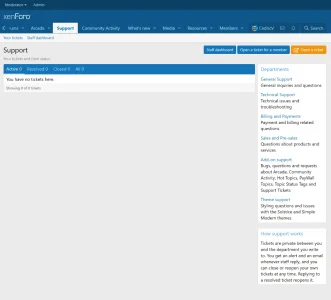
The support center lives at /support/ and is added directly to your navigation. Members see their own tickets, can open a new one and choose which department it belongs to. Staff use the same support area, but with the extra tools needed to actually manage everything.
Departments and priorities
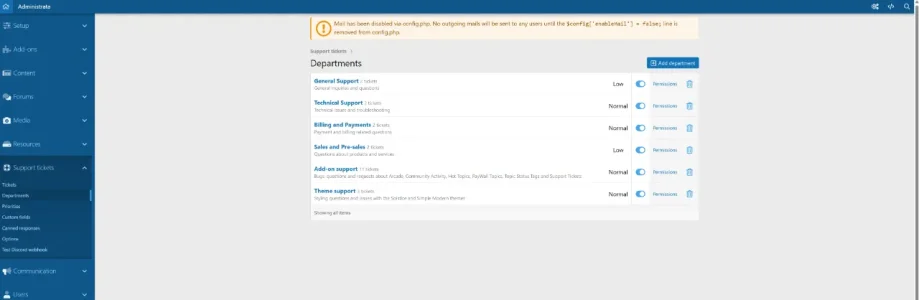
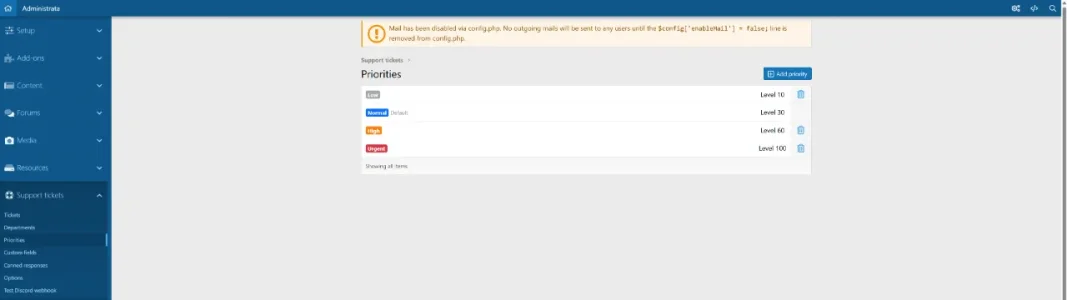
Tickets can be split into departments, each with its own staff, optional automatic reply, default priority and custom fields. Priorities are colour-coded, so urgent tickets stand out without staff having to open every one first. Both departments and priorities are managed through the Admin CP. A few defaults are created during installation so the add-on is usable straight away.
Custom fields per department
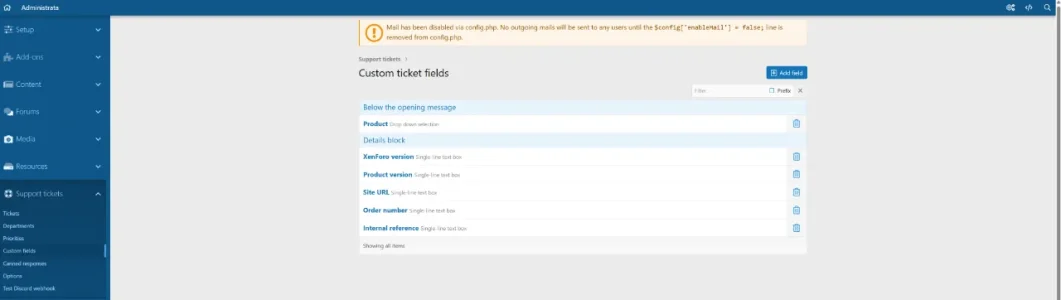
Each department can ask for the information it actually needs. A billing department might ask for an order number. Technical support could ask for a URL, software version or anything else you want before the ticket is submitted. Fields can also be staff-only when they're meant for internal use. The values stay visible on the ticket itself instead of being buried somewhere in the first reply.
The staff dashboard
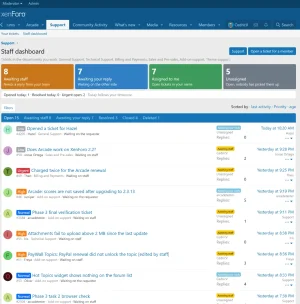
The staff dashboard lives at /support/dashboard/ and is probably where most staff will spend their time. Across the top are counters for tickets waiting on staff, waiting on the member, assigned to you and still unassigned. Below that is the ticket queue. It can be filtered by status and sorted by things like last activity, priority or age. Each ticket also has a quick menu, so staff can assign it to themselves, edit it or delete it without having to open the ticket first.
Working a ticket
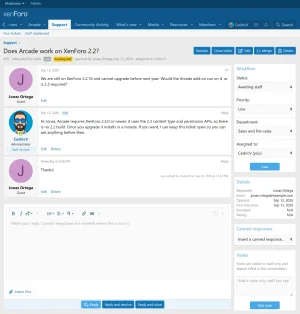
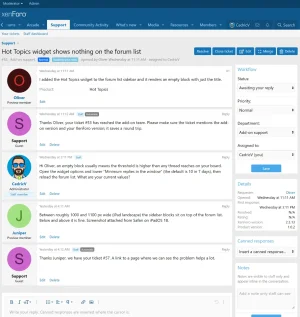
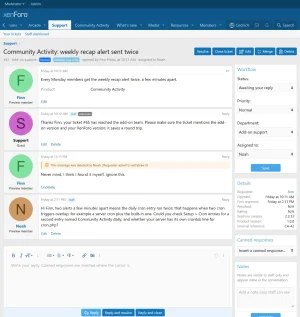
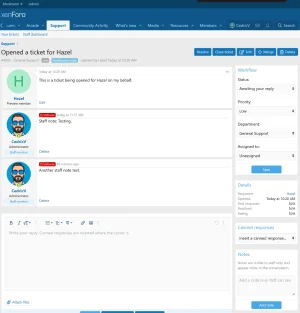
The actual ticket view works much like a normal XenForo conversation. The conversation sits in the main area, while the side panel contains the things staff need to manage it. You can change the status, priority, department or assigned staff member, see the requester's details and insert a canned response. Members reply in the same place. Staff can also reply and resolve, or reply and close, in one go instead of having to make the reply and then update the ticket separately.
Canned responses
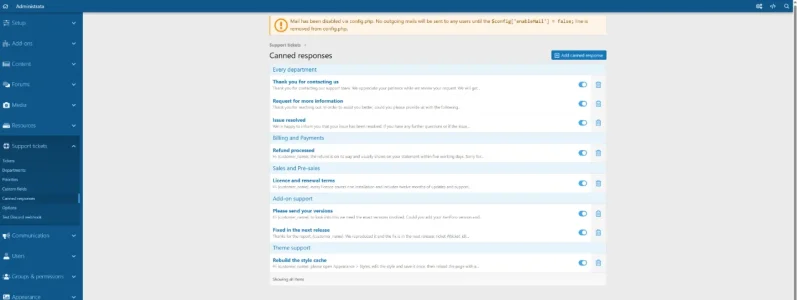
If you're typing the same answer over and over, you can save it once and reuse it. Responses can either be available everywhere or limited to a specific department. They also support placeholders, so things like the member's name can be inserted automatically instead of every reply looking like the same copied template.
Private staff notes
Staff can leave internal notes directly inside a ticket. The member never sees them. They appear in the conversation where they were added and are clearly styled differently from normal replies, so there shouldn't be any confusion about what was sent to the member and what stayed internal.
Activity log
Every ticket keeps a record of the important changes made to it. That includes status changes, assignments, edits, deletions and automatic actions. If you pick up a ticket after someone else was already working on it, you can see what happened before you got there instead of trying to piece it together yourself.
Attachments and ratings
Members and staff can attach files using XenForo's normal attachment system. Once a ticket is resolved, the person who opened it can also leave a rating and a short comment if ratings are enabled. It's a simple way of seeing how people feel about the support they're getting.
Guests can open tickets too
Guests don't have to register just to ask a question. They can open a ticket using their email address and receive an access key that lets them come back and follow the ticket afterwards. That makes it useful for things like pre-sales questions, login problems or account issues where asking someone to create an account first wouldn't make much sense.
Turn a forum post into a ticket
Not every support request starts in the support area. Sometimes someone posts something publicly that really belongs in a private ticket. Staff can turn a forum post into a ticket directly from the post itself. The original message is carried over, so there's no need to copy everything manually.
Open a ticket for a member
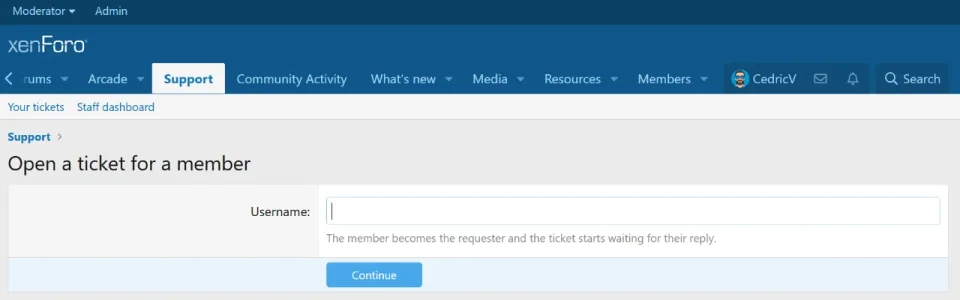
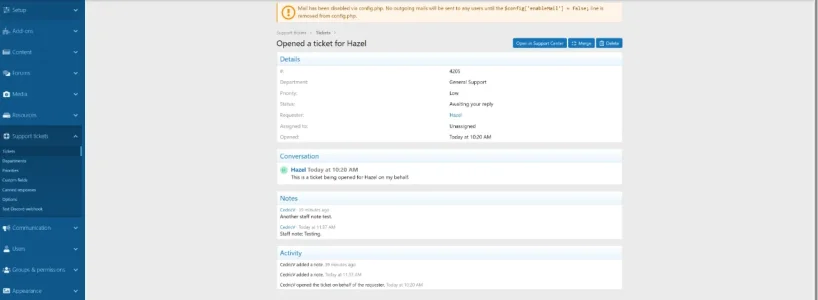
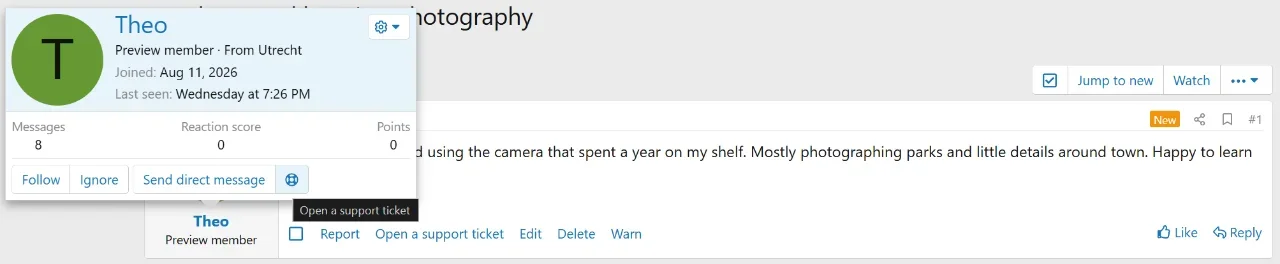
Staff can also create a ticket on somebody else's behalf. That can be done from the member card, the member's Admin CP page or directly from the support dashboard. It's useful when someone mentions an issue somewhere else and you want to get it into the support system before it gets forgotten.
Notifications
In-app alerts (9)
Each one shows in the member's normal XenForo alerts and can be switched off individually in their alert preferences.
1. New ticket opened - to the department's staff
2. A ticket was opened for you - to the member a staff member opened it on behalf of
3. A member replied - to the assigned staff (or all department staff if unassigned)
4. Staff replied to your ticket - to the requester
5. Ticket status changed - to the requester (staff change) or staff (member change)
6. Ticket reopened - to the requester
7. Ticket assigned to you - to the new assignee
8. You were unassigned from a ticket - to the previous assignee
9. A member rated your ticket - to the assignee
Emails (10)
The member-facing ones only go out to people who tick "email me when there's activity on my tickets" in their account preferences. Guest and department emails always send.
1. New ticket - to staff, and to the department's email address if one is set
2. A ticket was opened for you - to the member
3. A member replied - to the assigned staff, and to the department's email address
4. Staff replied - to the requester (registered members and guests)
5. Status changed - to the requester (members and guests)
6. Ticket reopened - to the requester (members and guests)
7. Ticket assigned to you - to the assignee
8. You were unassigned - to the previous assignee
9. Guest ticket created - a confirmation to the guest who opened it
10. Guest access links - sent when a guest asks for their tickets by email, with a link to each
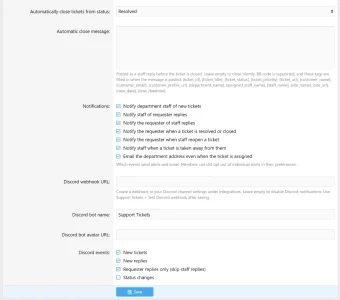
You can also add a Discord webhook if you want ticket activity pushed into Discord for staff. And which staff/requester notifications fire is controlled by the notification options in Admin CP → Options → Support Tickets.
Admin ticket management
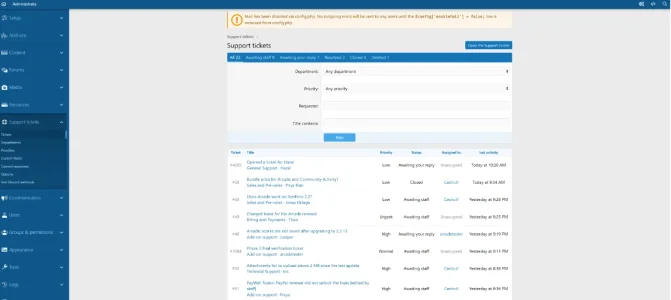
The front-end dashboard is where staff will normally work, but there's also a full ticket list in the Admin CP. Tickets can be filtered by department, priority, requester, title and status. From there you can open a ticket, merge duplicates, soft-delete tickets and restore them later if needed.
Tickets that don't sit around forever
Resolved tickets can be closed automatically after a set number of days. A daily task handles that in the background, so old resolved tickets don't keep building up in the queue forever.
Permissions work like XenForo permissions
You can control who can open tickets, who can work as staff, who can access individual departments, who can see deleted content and who gets moderation tools. Staff-only controls only appear for people who actually have permission to use them.
Settings without fifty switches
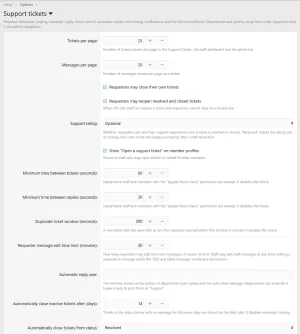
The main settings live under Admin CP → Options → Support Tickets. You can enable or disable the system, choose how many messages appear per page, set flood limits for tickets and replies, enable or disable ratings, control when resolved tickets are automatically closed, add a Discord webhook and choose whether the support button appears on member cards. That's about it. Most of the actual control comes from departments and permissions rather than a huge options page.
Permissions
Permissions are split across general ticket actions, staff moderation and department access. Sensible defaults are installed automatically, so the system works out of the box. From there you can tighten things down or open them up depending on how your support team works.
Requirements and installation
Support Tickets requires:
Upload the contents of the upload directory and install it through Admin CP → Add-ons, or upload the package directly through the control panel.
Default departments, priorities and permissions are created automatically, so you have a working support desk as soon as the add-on is enabled. This is a port over from my Invision application. It's designed to keep the process as easy as possible for guests, members, staff and the admin setting everything up. It has no copyright link added either.
Support Tickets adds a full helpdesk to XenForo 2.3.
Members get a dedicated support area where they can open and follow tickets, while staff get a shared dashboard to work through them. Everything stays on the forum instead of ending up spread across email, conversations and whoever happened to receive the message first.
It uses XenForo's existing systems wherever possible. Permissions, attachments, alerts, moderation and user groups all work the way you'd expect, so it doesn't feel like a completely separate piece of software slapped onto the forum.
There are basically two sides to it. Members get a simple support area for opening tickets and keeping track of replies. Staff get the actual working side with queues, assignments, canned responses, private notes and the tools needed to move tickets along.
Demo
The demo board is fairly small, but feel free to create some support tickets to have a feeling for it.
---
New in 1.1.0:
Turn a warning into a ticket
When you warn a member, XenForo only lets you start a private conversation with the one moderator who issued it. Support Tickets can instead open a ticket in a dedicated Warnings department, so the member and the whole staff team are in the same place and any of them can respond, rather than one person handling it out of sight. The member owns the ticket and can reply or appeal, any notes you added to the warning stay as a private staff note, and XenForo's own warning system is left untouched. It's on by default and can be pointed at any department or switched off under Admin CP → Options → Support Tickets.
----
One place for support
The support center lives at /support/ and is added directly to your navigation. Members see their own tickets, can open a new one and choose which department it belongs to. Staff use the same support area, but with the extra tools needed to actually manage everything.
Departments and priorities
Tickets can be split into departments, each with its own staff, optional automatic reply, default priority and custom fields. Priorities are colour-coded, so urgent tickets stand out without staff having to open every one first. Both departments and priorities are managed through the Admin CP. A few defaults are created during installation so the add-on is usable straight away.
Custom fields per department
Each department can ask for the information it actually needs. A billing department might ask for an order number. Technical support could ask for a URL, software version or anything else you want before the ticket is submitted. Fields can also be staff-only when they're meant for internal use. The values stay visible on the ticket itself instead of being buried somewhere in the first reply.
The staff dashboard
The staff dashboard lives at /support/dashboard/ and is probably where most staff will spend their time. Across the top are counters for tickets waiting on staff, waiting on the member, assigned to you and still unassigned. Below that is the ticket queue. It can be filtered by status and sorted by things like last activity, priority or age. Each ticket also has a quick menu, so staff can assign it to themselves, edit it or delete it without having to open the ticket first.
Working a ticket
The actual ticket view works much like a normal XenForo conversation. The conversation sits in the main area, while the side panel contains the things staff need to manage it. You can change the status, priority, department or assigned staff member, see the requester's details and insert a canned response. Members reply in the same place. Staff can also reply and resolve, or reply and close, in one go instead of having to make the reply and then update the ticket separately.
Canned responses
If you're typing the same answer over and over, you can save it once and reuse it. Responses can either be available everywhere or limited to a specific department. They also support placeholders, so things like the member's name can be inserted automatically instead of every reply looking like the same copied template.
Private staff notes
Staff can leave internal notes directly inside a ticket. The member never sees them. They appear in the conversation where they were added and are clearly styled differently from normal replies, so there shouldn't be any confusion about what was sent to the member and what stayed internal.
Activity log
Every ticket keeps a record of the important changes made to it. That includes status changes, assignments, edits, deletions and automatic actions. If you pick up a ticket after someone else was already working on it, you can see what happened before you got there instead of trying to piece it together yourself.
Attachments and ratings
Members and staff can attach files using XenForo's normal attachment system. Once a ticket is resolved, the person who opened it can also leave a rating and a short comment if ratings are enabled. It's a simple way of seeing how people feel about the support they're getting.
Guests can open tickets too
Guests don't have to register just to ask a question. They can open a ticket using their email address and receive an access key that lets them come back and follow the ticket afterwards. That makes it useful for things like pre-sales questions, login problems or account issues where asking someone to create an account first wouldn't make much sense.
Turn a forum post into a ticket
Not every support request starts in the support area. Sometimes someone posts something publicly that really belongs in a private ticket. Staff can turn a forum post into a ticket directly from the post itself. The original message is carried over, so there's no need to copy everything manually.
Open a ticket for a member
Staff can also create a ticket on somebody else's behalf. That can be done from the member card, the member's Admin CP page or directly from the support dashboard. It's useful when someone mentions an issue somewhere else and you want to get it into the support system before it gets forgotten.
Notifications
In-app alerts (9)
Each one shows in the member's normal XenForo alerts and can be switched off individually in their alert preferences.
1. New ticket opened - to the department's staff
2. A ticket was opened for you - to the member a staff member opened it on behalf of
3. A member replied - to the assigned staff (or all department staff if unassigned)
4. Staff replied to your ticket - to the requester
5. Ticket status changed - to the requester (staff change) or staff (member change)
6. Ticket reopened - to the requester
7. Ticket assigned to you - to the new assignee
8. You were unassigned from a ticket - to the previous assignee
9. A member rated your ticket - to the assignee
Emails (10)
The member-facing ones only go out to people who tick "email me when there's activity on my tickets" in their account preferences. Guest and department emails always send.
1. New ticket - to staff, and to the department's email address if one is set
2. A ticket was opened for you - to the member
3. A member replied - to the assigned staff, and to the department's email address
4. Staff replied - to the requester (registered members and guests)
5. Status changed - to the requester (members and guests)
6. Ticket reopened - to the requester (members and guests)
7. Ticket assigned to you - to the assignee
8. You were unassigned - to the previous assignee
9. Guest ticket created - a confirmation to the guest who opened it
10. Guest access links - sent when a guest asks for their tickets by email, with a link to each
You can also add a Discord webhook if you want ticket activity pushed into Discord for staff. And which staff/requester notifications fire is controlled by the notification options in Admin CP → Options → Support Tickets.
Admin ticket management
The front-end dashboard is where staff will normally work, but there's also a full ticket list in the Admin CP. Tickets can be filtered by department, priority, requester, title and status. From there you can open a ticket, merge duplicates, soft-delete tickets and restore them later if needed.
Tickets that don't sit around forever
Resolved tickets can be closed automatically after a set number of days. A daily task handles that in the background, so old resolved tickets don't keep building up in the queue forever.
Permissions work like XenForo permissions
You can control who can open tickets, who can work as staff, who can access individual departments, who can see deleted content and who gets moderation tools. Staff-only controls only appear for people who actually have permission to use them.
Settings without fifty switches
The main settings live under Admin CP → Options → Support Tickets. You can enable or disable the system, choose how many messages appear per page, set flood limits for tickets and replies, enable or disable ratings, control when resolved tickets are automatically closed, add a Discord webhook and choose whether the support button appears on member cards. That's about it. Most of the actual control comes from departments and permissions rather than a huge options page.
Permissions
Permissions are split across general ticket actions, staff moderation and department access. Sensible defaults are installed automatically, so the system works out of the box. From there you can tighten things down or open them up depending on how your support team works.
Requirements and installation
Support Tickets requires:
- XenForo 2.3.0 or newer
- PHP 8.1 or newer
Upload the contents of the upload directory and install it through Admin CP → Add-ons, or upload the package directly through the control panel.
Default departments, priorities and permissions are created automatically, so you have a working support desk as soon as the add-on is enabled. This is a port over from my Invision application. It's designed to keep the process as easy as possible for guests, members, staff and the admin setting everything up. It has no copyright link added either.
-
 Schermafbeelding 2026-09-20 133356.webp
 -
 Schermafbeelding 2026-09-20 133405.webp
 -
 Schermafbeelding 2026-09-20 133445.webp
 -
 Schermafbeelding 2026-09-20 133535.webp
 -
 Schermafbeelding 2026-09-20 133609.webp
 -
 Schermafbeelding 2026-09-20 133619.webp
 -
 Schermafbeelding 2026-09-20 133649.webp
 -
 Schermafbeelding 2026-09-20 133657.webp
 -
 Schermafbeelding 2026-09-20 133708.webp
 -
 Schermafbeelding 2026-09-20 133717.webp
 -
 Schermafbeelding 2026-09-20 133724.webp
 -
 Schermafbeelding 2026-09-20 133802.webp
 -
 Schermafbeelding 2026-09-20 133811.webp
 -
 Schermafbeelding 2026-09-20 133847.webp
 -
 Schermafbeelding 2026-09-20 133856.webp
 -
 Schermafbeelding 2026-09-20 135257.webp
 -
 Schermafbeelding 2026-09-20 135316.webp


