
![[SC] Mega Navigation Builder](/community/data/resource_icons/10/10961.jpg?1793278499)
- Compatible XF 2.x versions
- 2.3
- Additional requirements
- PHP 8.1+
- License
- Creative Commons license
- Updates duration
- 3 Months Free Updates // $10 Renewal
- Visible branding
- No
Give your XenForo community a more organized, attractive way to explore everything your website offers.
[SC] Mega Navigation Builder turns your navigation into customizable, multi-column dropdown menus. Bring discussions, resources, membership options, support links and other important destinations together in one convenient place.
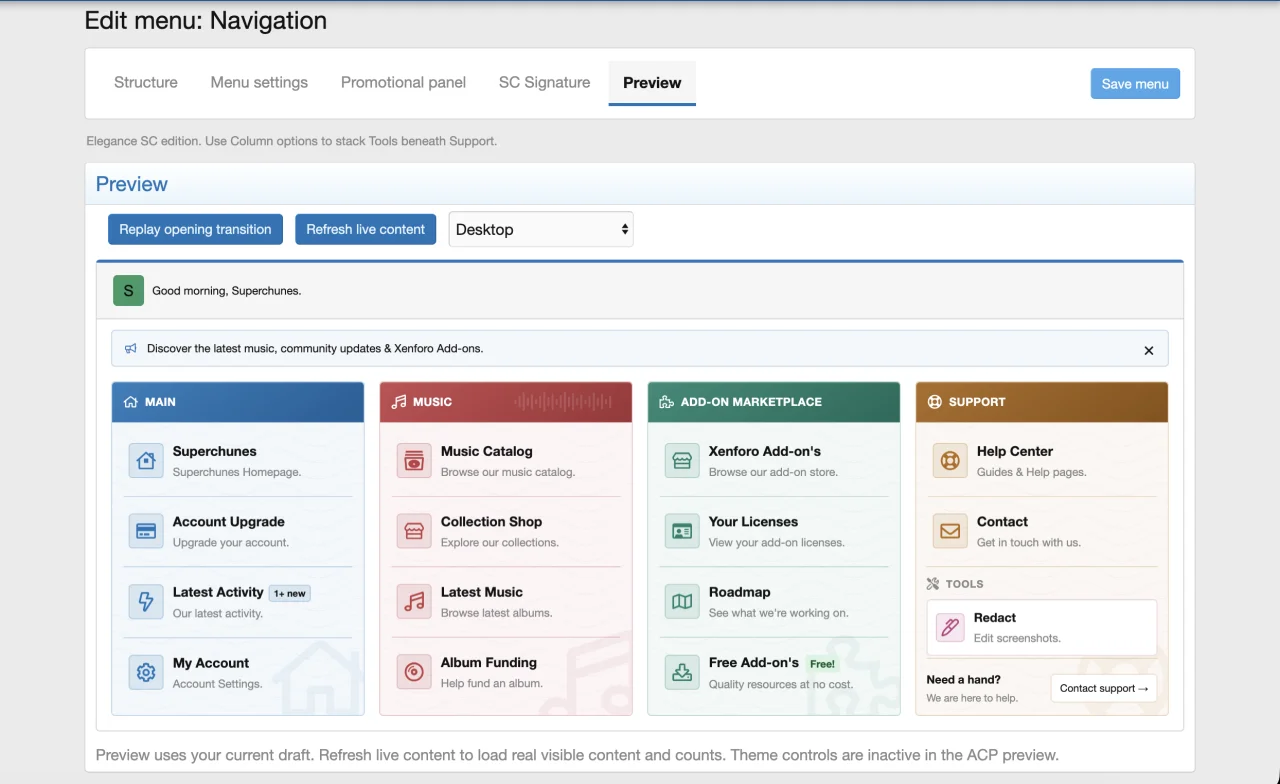
Build your menus visually through the Admin Control Panel. Arrange categories and links, customize their appearance, add announcements and promotional content, and preview your design before publishing.
Whether you run a small discussion community or a website with multiple sections, Mega Navigation Builder helps visitors find what they need while giving you control over the presentation.
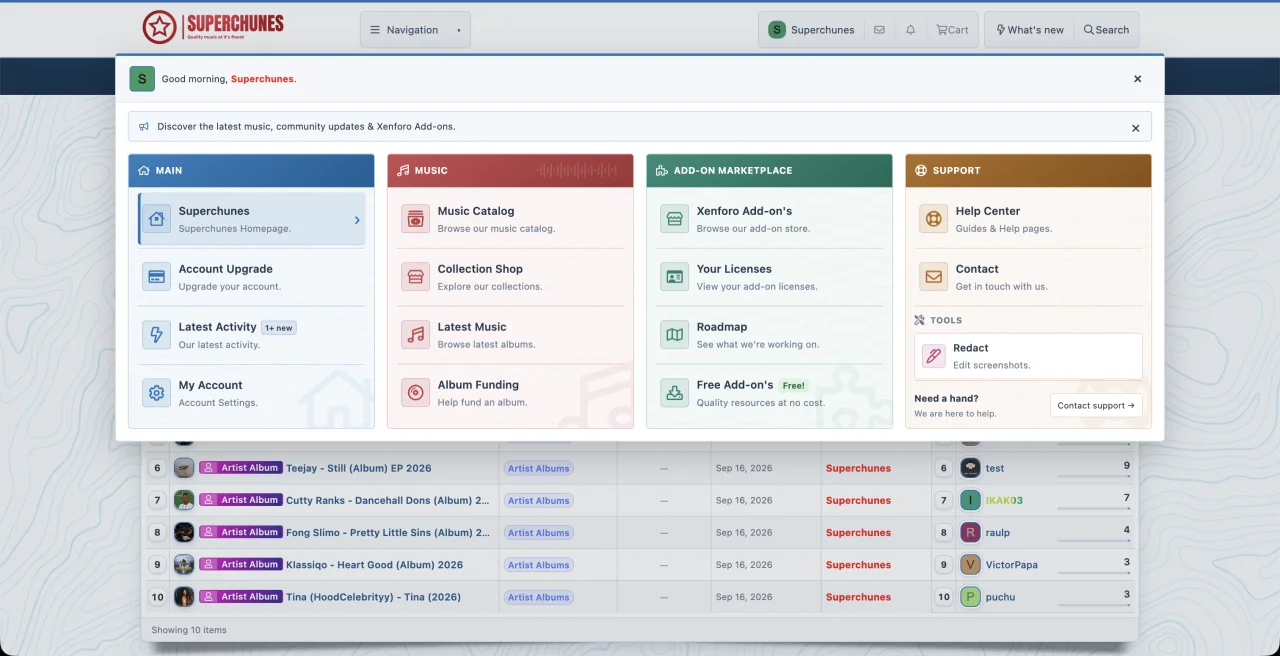
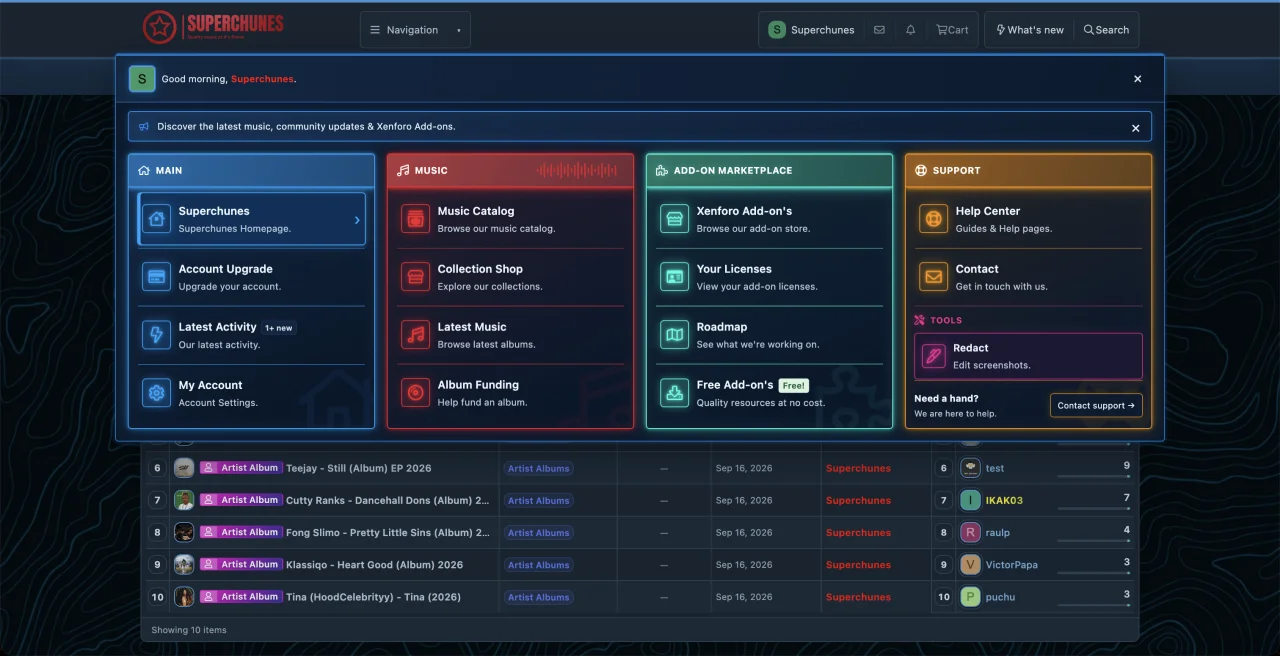
Visual menu builder
Forum owners who want clearer navigation, communities with multiple content areas, membership websites, resource libraries, marketplaces and administrators who want to organize important links without building menu layouts manually.
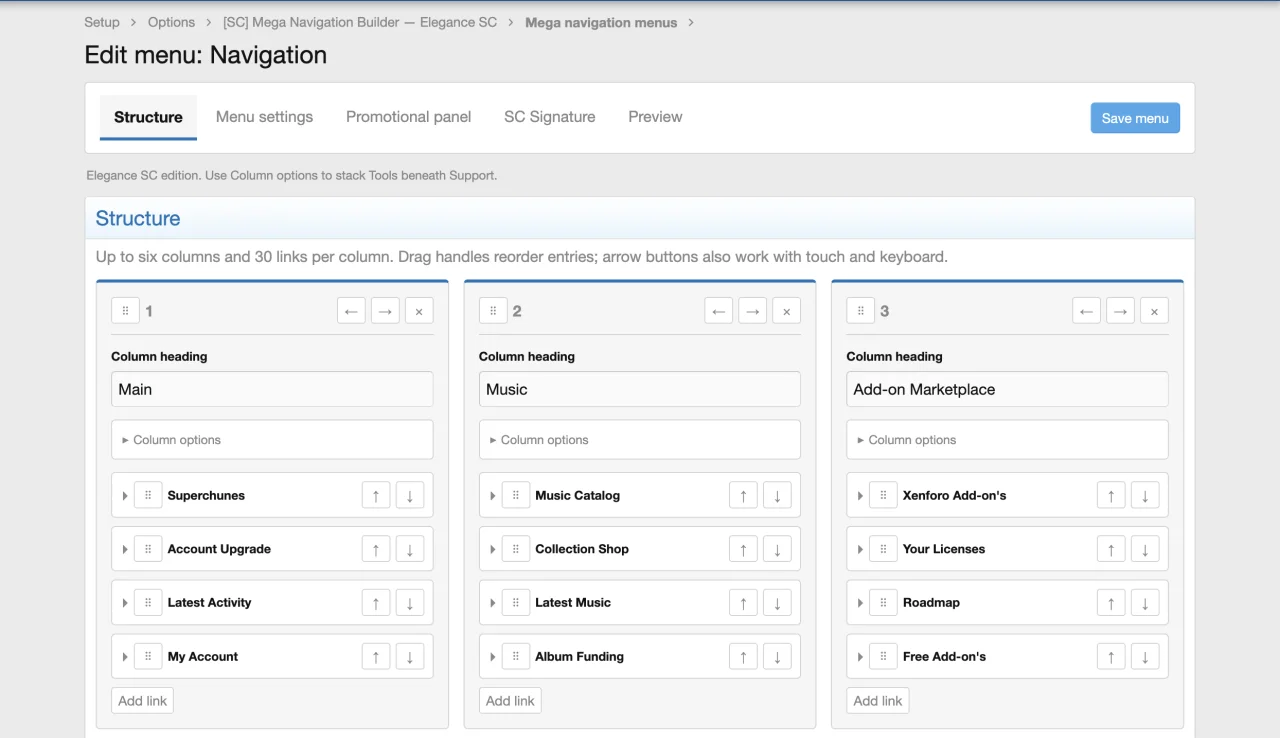
Requirements
Navigation setup note
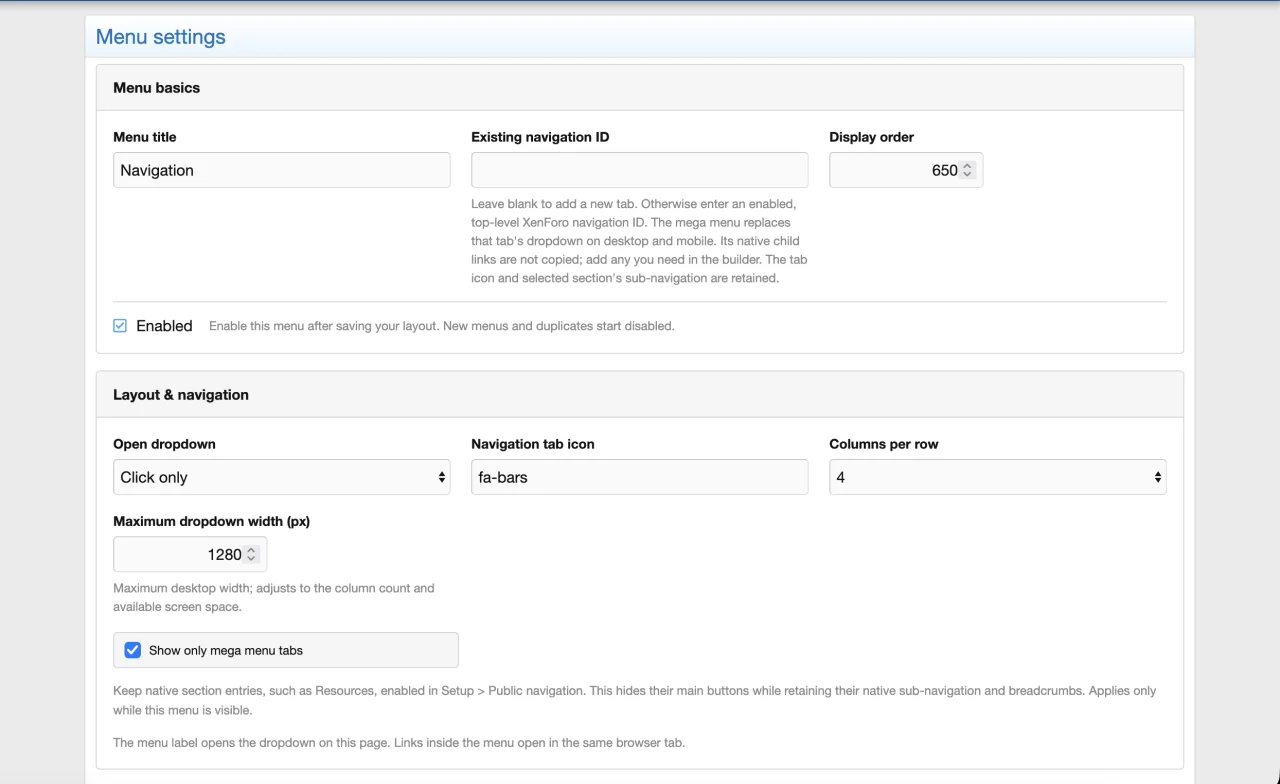
When using “Show only mega menu tabs,” keep native sections such as Forums and Resources enabled in Public navigation. The setting hides their main navigation buttons while retaining their native section data, (SubNav links). When attached to an existing tab, the mega menu becomes that tab’s dropdown; add any desired native dropdown shortcuts to your menu.
[SC] Mega Navigation Builder turns your navigation into customizable, multi-column dropdown menus. Bring discussions, resources, membership options, support links and other important destinations together in one convenient place.
Build your menus visually through the Admin Control Panel. Arrange categories and links, customize their appearance, add announcements and promotional content, and preview your design before publishing.
Whether you run a small discussion community or a website with multiple sections, Mega Navigation Builder helps visitors find what they need while giving you control over the presentation.
Visual menu builder
- Create and manage up to 32 mega menus.
- Add up to six category sections per menu, with up to 30 links per section.
- Choose between one and six columns per row.
- Stack a category beneath the previous category.
- Reorder categories and links using drag-and-drop handles.
- Use movement buttons for keyboard and touch-friendly editing.
- Move links between categories.
- Edit category headings, link titles, descriptions, icons and badges.
- Start with an editable starter layout.
- Preview desktop and phone layouts before saving.
- Duplicate existing menus to reuse their configuration.
- Export configurations as JSON for reference or archiving.
- Create a new top-level navigation tab.
- Attach a mega menu to an existing enabled top-level XenForo navigation entry.
- Choose native XenForo tab styling or an outlined navigation button.
- Customize the navigation icon and display order.
- Open menus using hover and click, or click only.
- Enable or disable individual menus.
- Use “Show only mega menu tabs” to simplify the main navigation while retaining enabled native sections for sub-navigation and breadcrumbs.
- Retain the selected section’s native sub-navigation.
- Add custom internal or external HTTP/HTTPS links.
- Use built-in destinations for forums, new posts, latest activity, members, online users, search, help, login, registration, account settings, preferences, account upgrades and contact.
- Add Font Awesome icons to category headings and individual links.
- Customize category accent colors and individual link icon colors.
- Highlight links with editable badges and badge colors.
- Add category footer buttons.
- Include customizable support blocks with help, contact or custom-link destinations.
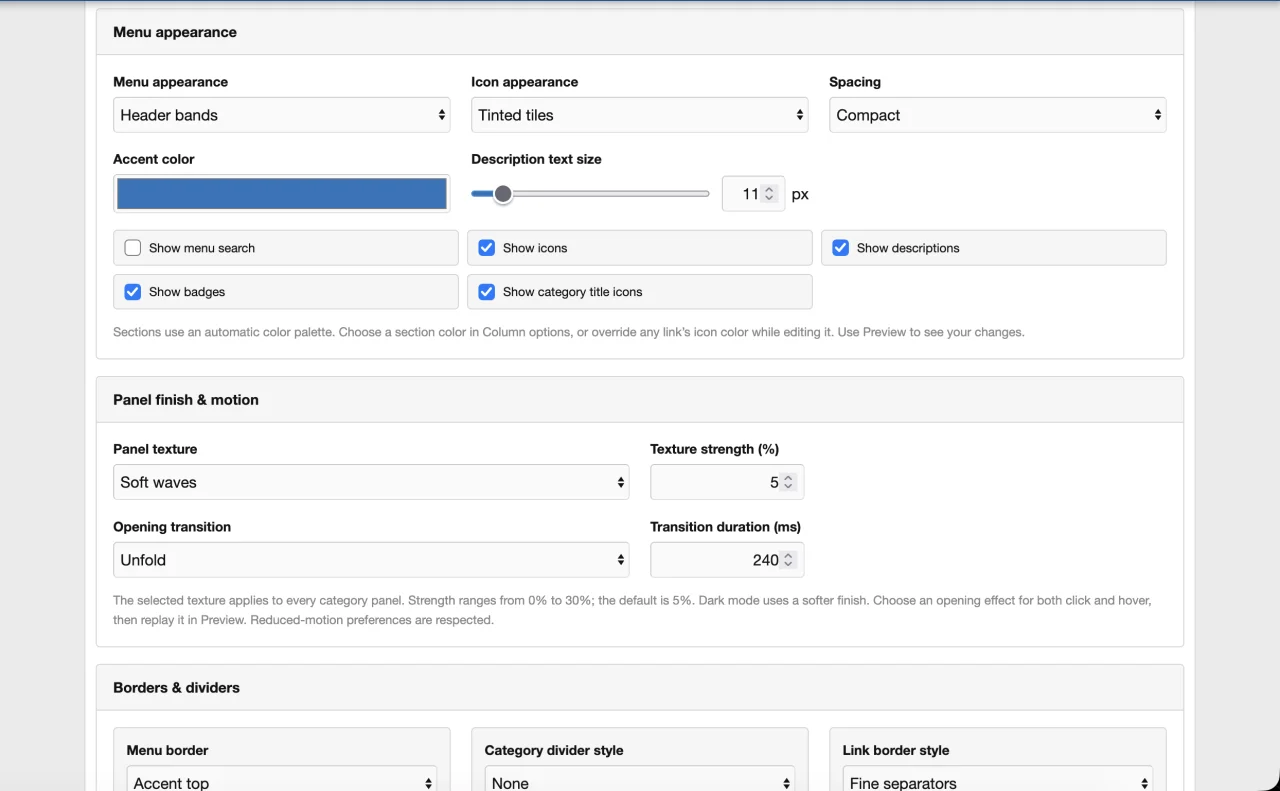
- Show or hide descriptions, link icons, category icons and badges.
- Enable instant menu search to filter displayed links.
- Choose from seven menu appearances: Classic, Soft cards, Accent rails, Raised cards, Header bands, Underlined headings and Inset panels.
- Add solid gradient category title bands.
- Choose plain, soft or solid icon treatments.
- Select compact or comfortable spacing.
- Adjust description text size.
- Set the desktop maximum menu width from 400 to 1600 pixels.
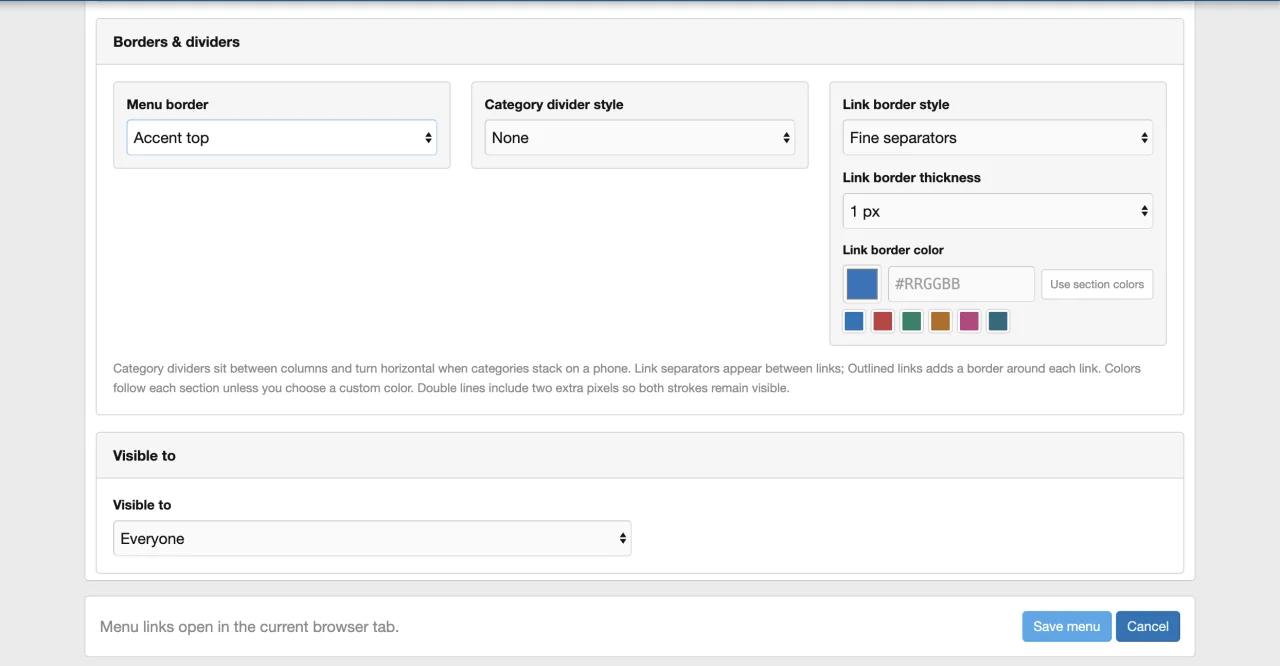
- Customize menu borders, outlines and shadows.
- Configure category dividers and link separators.
- Adjust divider thickness and colors.
- Add category icon watermarks with adjustable size and opacity.
- Follow your XenForo style’s light and dark colors.
- Choose a plain finish or one of 13 decorative textures: Fine grain, Woven linen, Soft dots, Diagonal weave, Graph paper, Brushed finish, Contour lines, Soft paper, Fine canvas, Crosshatch, Herringbone, Honeycomb and Soft waves.
- Adjust texture strength.
- Choose from 12 opening options: Instant, Soft fade, Slide down, Rise up, Gentle zoom, Unfold, Unfold upward, Unfold from left, Unfold from right, Spring unfold, Blur fade and Glide in.
- Adjust animation duration.
- Enable staggered link animations.
- Replay transitions in the preview.
- Respect visitors’ reduced-motion preferences.
- Display a time-based visitor greeting.
- Show members’ native avatars and styled usernames.
- Display a guest greeting for signed-out visitors.
- Add an announcement bar with an optional link.
- Allow visitors to dismiss announcements.
- Add a promotional panel with an editable title, description, button and optional background image.
- Apply audience rules to promotional content.
- Show content to everyone, guests, members or selected user groups.
- Apply visibility rules to entire menus, categories, individual links and promotional panels.
- Automatically hide categories without visible links, footer buttons or support content.
- Keep existing XenForo permissions in control of access to linked pages.
- Responsive menu layouts for desktop and mobile screens.
- Mega menu access from XenForo’s mobile navigation drawer.
- Keyboard controls, Escape-to-close and focus restoration.
- Clear controls for menu search and closing panels.
- Translatable interface phrases.
Forum owners who want clearer navigation, communities with multiple content areas, membership websites, resource libraries, marketplaces and administrators who want to organize important links without building menu layouts manually.
Requirements
- XenForo 2.3.0 or newer.
- PHP 8.1.0 or newer.
Navigation setup note
When using “Show only mega menu tabs,” keep native sections such as Forums and Resources enabled in Public navigation. The setting hides their main navigation buttons while retaining their native section data, (SubNav links). When attached to an existing tab, the mega menu becomes that tab’s dropdown; add any desired native dropdown shortcuts to your menu.
![[SC] Duplicate UserGroup](/community/data/resource_icons/10/10973.jpg?1793386322)
![[SC] Ban Management Suite](/community/data/resource_icons/10/10968.jpg?1793368949)
![[SC] Limit Guest Viewing](/community/data/resource_icons/10/10810.jpg?1790193358)
![[SC] Chatbox](/community/data/resource_icons/10/10698.jpg?1790193989)
![[SC] Redacted](/community/data/resource_icons/10/10921.jpg?1792339641)