- Compatible XF 2.x versions
- 2.2
- 2.3
- Additional requirements
- clamAV
- License
- BSD license
- Visible branding
- No
LTspicer-ClamAV-Scanner
The LTspicer-ClamAV-Scanner add-on holds new attachments until a local ClamAV daemon has scanned them. It supports XenForo 2.2 and 2.3 and was developed against XenForo 2.2.19 and 2.3.6.
Features
Install clamAV
Install the add-on
1. Install clamAV on the server.
2. Extract the release ZIP and copy the contents of the upload/ directory into the XenForo installation root.
3. In the Admin CP, open Add-ons and install LTspicer ClamAV Scanner.
4. Visit Setup → Options → LTspicer ClamAV scanning and configure the settings.
The add-on's default socket value is unix:///run/clamav/clamd.ctl. Set the ACP option to the exact LocalSocket path shown by your daemon configuration. A Unix socket is recommended for a local daemon. Make sure the PHP worker user can access the socket; use a suitable group or socket permissions rather than exposing the socket to every local user. Set
Then, in a test forum, upload the standard harmless EICAR test file and confirm that the ACP report shows it as infected and that XenForo blocks it. Remove the test attachment after verifying the workflow.
Configure the XenForo add-on
Open Setup → Options → LTspicer ClamAV scanning:
- clamd socket address: use the daemon's LocalSocket path. The prefilled path is a common Debian/Ubuntu default; verify it on your server. TCP is also supported with a value such as tcp://127.0.0.1:3310.
- Timeout: maximum connection and response time.
- Excluded extensions, user groups, and forums: choose what should skip scanning. Image files are scanned by default; excluding image extensions reduces coverage.
- Scan private conversation attachments: turn this off if private message attachments should not be scanned.
- Alert recipients: search for and select the members who should receive infection emails.
Configure and start ClamAV, verify socket access, and make sure XenForo's background jobs are running before accepting uploads. Background jobs process scans and retry requests. Attachments stay unavailable while a scan is pending or has an error; retry the scan after fixing the cause of an error.
Reports and permissions
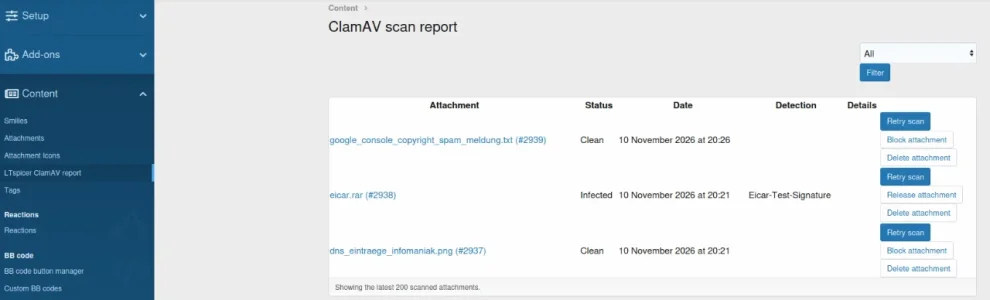
- The global report is in the ACP under Content → LTspicer ClamAV report.
- The Retry scan button queues another background scan, including for attachments already marked clean.
- Block attachment manually blocks a clean attachment; Release attachment makes an infected or manually blocked attachment available again.
- Release attachment makes an infected attachment available despite the detection. Use it only after reviewing the file.
- Re-block attachment blocks a manually released attachment again.
- Delete attachment opens XenForo's confirmation page and permanently deletes the selected attachment.
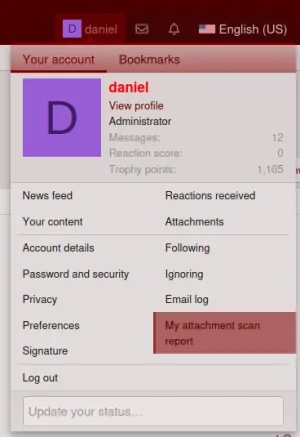
- To show a member's own report in the account menu, grant View my ClamAV scan report in Groups & permissions → User group permissions → General permissions.
German phrases
The release contains English master phrases. To add German translations, import language-Deutsch-LTspicer-ClamAVScanner.xml in Appearance → Languages → Import and apply it to the existing German language.
Uninstall
Uninstall the add-on from the ACP. The add-on removes its scan-status table; XenForo attachments are not deleted by uninstalling the add-on.
The LTspicer-ClamAV-Scanner add-on holds new attachments until a local ClamAV daemon has scanned them. It supports XenForo 2.2 and 2.3 and was developed against XenForo 2.2.19 and 2.3.6.
Features
- Scans attachments in a XenForo background job using ClamAV's INSTREAM protocol.
- Keeps attachments pending or blocked if scanning fails or ClamAV reports an infection.
- Provides an ACP scan report with filters, retry, manual release, re-block and attachment deletion.
- Lets administrators exclude file extensions, user groups, forums and choose whether to scan private conversation attachments.
- Emails selected members when ClamAV detects an infected upload.
- Offers a permission-controlled account report showing each member only their own attachments.
- Shows a status marker on pending, infected, scan-error and manually blocked attachments.
Install clamAV
Code:
Install clamAV (Debian, Ubuntu etc.):
=====================================
sudo apt update
sudo apt install -y clamav clamav-daemon clamav-freshclam clamdscan

Start service:
==============
sudo systemctl enable --now clamav-freshclam

Test:
=====
sudo systemctl status clamav-freshclam

First update:
=============
sudo systemctl stop clamav-freshclam
sudo freshclam
sudo systemctl start clamav-freshclam

Start Daemon:
=============
sudo systemctl enable --now clamav-daemon
sudo systemctl status clamav-daemon

Limits:
=======
For a XenForo upload limit of 350 MB, use settings like these. Edit existing active directives, or add a directive if it is absent; avoid leaving multiple active definitions of the same setting:

/etc/clamav/clamd.conf:

MaxFileSize 360M
StreamMaxLength 360M
MaxScanSize 1G
AlertExceedsMax yes

MaxFileSize and StreamMaxLength are set slightly above the upload cap. MaxScanSize limits the total amount of data ClamAV scans inside archives and other containers; 1G is an example cap, not a universal value. Higher limits can use more server resources. AlertExceedsMax yes makes ClamAV report files that exceed scanning limits as detections instead of silently skipping them.

Restart clamd after changing its configuration:

sudo systemctl restart clamav-daemon
sudo systemctl status clamav-daemon
Install the add-on
1. Install clamAV on the server.
2. Extract the release ZIP and copy the contents of the upload/ directory into the XenForo installation root.
3. In the Admin CP, open Add-ons and install LTspicer ClamAV Scanner.
4. Visit Setup → Options → LTspicer ClamAV scanning and configure the settings.
The add-on's default socket value is unix:///run/clamav/clamd.ctl. Set the ACP option to the exact LocalSocket path shown by your daemon configuration. A Unix socket is recommended for a local daemon. Make sure the PHP worker user can access the socket; use a suitable group or socket permissions rather than exposing the socket to every local user. Set
StreamMaxLength high enough for your largest XenForo attachment.Then, in a test forum, upload the standard harmless EICAR test file and confirm that the ACP report shows it as infected and that XenForo blocks it. Remove the test attachment after verifying the workflow.
Configure the XenForo add-on
Open Setup → Options → LTspicer ClamAV scanning:
- clamd socket address: use the daemon's LocalSocket path. The prefilled path is a common Debian/Ubuntu default; verify it on your server. TCP is also supported with a value such as tcp://127.0.0.1:3310.
- Timeout: maximum connection and response time.
- Excluded extensions, user groups, and forums: choose what should skip scanning. Image files are scanned by default; excluding image extensions reduces coverage.
- Scan private conversation attachments: turn this off if private message attachments should not be scanned.
- Alert recipients: search for and select the members who should receive infection emails.
Configure and start ClamAV, verify socket access, and make sure XenForo's background jobs are running before accepting uploads. Background jobs process scans and retry requests. Attachments stay unavailable while a scan is pending or has an error; retry the scan after fixing the cause of an error.
Reports and permissions
- The global report is in the ACP under Content → LTspicer ClamAV report.
- The Retry scan button queues another background scan, including for attachments already marked clean.
- Block attachment manually blocks a clean attachment; Release attachment makes an infected or manually blocked attachment available again.
- Release attachment makes an infected attachment available despite the detection. Use it only after reviewing the file.
- Re-block attachment blocks a manually released attachment again.
- Delete attachment opens XenForo's confirmation page and permanently deletes the selected attachment.
- To show a member's own report in the account menu, grant View my ClamAV scan report in Groups & permissions → User group permissions → General permissions.
German phrases
The release contains English master phrases. To add German translations, import language-Deutsch-LTspicer-ClamAVScanner.xml in Appearance → Languages → Import and apply it to the existing German language.
Uninstall
Uninstall the add-on from the ACP. The add-on removes its scan-status table; XenForo attachments are not deleted by uninstalling the add-on.