
- Compatible XF 2.x versions
- 2.2
- 2.3
- Additional requirements
- PHP 8.0+
- Updates duration
- 25$ yearly, 1 domain
- Visible branding
- No
Introduction
Seamlessly replaces XenForo's local attachment storage with Google Drive. Once enabled, all new uploads go directly to Google Drive via the official API. Existing attachments can be migrated with a single click. Your users notice nothing — uploads, downloads, and thumbnails work exactly as before.
Key benefits:
Features
The migration command shows a live progress bar with running counters, elapsed time and an ETA, and accepts:
Installations & Google Cloud Setup
For forums with a large back-catalogue, run the migration from the command line where you can tune it:
The migration is resumable — stopping and re-running continues from where it left off — and once you have verified the result, reclaim the disk with:
Step 8 (optional): Enable Local Cache Mode
Seamlessly replaces XenForo's local attachment storage with Google Drive. Once enabled, all new uploads go directly to Google Drive via the official API. Existing attachments can be migrated with a single click. Your users notice nothing — uploads, downloads, and thumbnails work exactly as before.
Key benefits:
- Reclaim server storage — attachments live in Google Drive, not on your disk
- Scale without limits — Google Drive offers up to 5TB per account on business plans
- Cloud reliability — Google's infrastructure handles redundancy, backups, and uptime
- Zero user friction — completely transparent; the forum experience is unchanged
- Choose your latency — direct upload, or write-behind caching that keeps posting instant
- Migrate at real speed — concurrent uploads and resumable state make a large back-catalogue practical instead of theoretical
- Store only what matters — an extension filter keeps large archives on Drive and small files local
Features
Storage
- Seamless replacement — Replaces both data:// and internal-data:// mounts transparently. Full files, thumbnails and retina thumbnails all live on Google Drive, and XenForo's attachment system works unmodified, so inline images, lightbox and download counts are preserved.
- Configurable folder — Store attachments in any Drive folder by entering its ID, or leave it blank to use the Drive root.
- Shared Drive support — Detects whether the configured folder belongs to a Shared Drive (Team Drive) and adjusts every API call accordingly. Personal folders and organizational Shared Drives both work.
- Local cache mode (optional) — Uploads are written to local disk and returned instantly, then a cron job every three hours moves them to Drive and deletes the local copy. Reads try local first and fall back to Drive automatically, so nothing breaks during the handover, and deletes, renames and copies stay consistent across both stores.
- Selective sync — Restrict Drive to specific file extensions, one per line. Everything else stays local. Applies to both background sync and migration.
Connection
- OAuth 2.0 — A proper authorization flow, with tokens stored in the database and refreshed automatically so the connection stays live without re-authentication. The callback is CSRF-protected by state parameter validation.
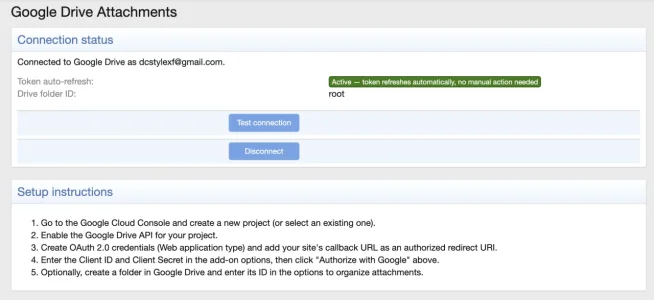
- Dashboard and test — A dedicated admin page shows the connected account, token status and configured folder, and lets you authorize, test or disconnect without leaving the panel. The one-click test confirms API access and reports the folder name before you enable the add-on.
- Concurrency-safe tokens — Tokens refresh with five minutes to spare, are re-read from the database so a refresh by another worker is adopted rather than duplicated, and any unauthenticated request is retried once after a refresh.
Uploads & Performance
- Chunked uploads — Files over 5 MB use Google's resumable protocol in 5 MB chunks, so large attachments cannot exhaust memory. Smaller files use a single request for speed.
- Path caching — An in-memory path-to-fileId cache removes redundant API calls within a request, and folder structures are created incrementally and cached.
- Graceful fallback — If Drive is unreachable, credentials are missing or the add-on is disabled, XenForo falls back to local storage. A Google API problem never takes the forum down, and disabling the add-on never breaks existing uploads.
Migration
- Bi-directional — Move existing attachments from local storage to Google Drive, or back again, from the admin panel or the command line. Every file is covered: full files, thumbnails and retina thumbnails. Progress is visible in XenForo's job manager.
- Concurrent — Files go out in parallel waves, ten at a time by default. Files over 5 MB still use sequential chunked upload, so memory stays bounded.
- Resumable — Progress is recorded per attachment, so an interrupted migration resumes where it stopped and a re-run skips completed work with a database join rather than a Google API call.
- Pre-warmed folders — The whole attachment folder structure is mapped up front in a handful of list calls, instead of a lookup per file.
Clear counters
Migrated / Skipped / Failed, with skips broken down so a deliberate skip reads differently from a problem:Migrated: 4,812 / Skipped: 340 [ext:301, no-file:38, no-entity:1] / Failed: 0- ext — filtered out by the extension setting
- no-file — no local file present to transfer
- no-entity — the attachment record no longer exists
Command Line
Code:
php cmd.php xf-rebuild:dcGda-migrateToGoogleDrive
php cmd.php xf-rebuild:dcGda-migrateToLocal| Option | Purpose |
|---|---|
| -c, --concurrency | Parallel uploads (default 10) |
| -b, --batch | Rows per database query (default 200) |
| --start-id / --end-id | Limit to an ID range, so one huge migration can be split across sessions |
| --delete-local | Delete each local file after it migrates successfully |
| --cleanup-local | Separate pass — reclaim disk after verifying the transfer |
Installations & Google Cloud Setup
Step 1: Install the Add-on
Install the add-on via Admin CP > Add-ons > Install/upgrade from archive or run:
Code:
php cmd.php xf-addon:install DC/GDAStep 2: Create a Google Cloud Project
- Go to the Google Cloud Console.
- Create a new project (or select an existing one).
- Navigate to APIs & Services > Library.
- Search for Google Drive API and click Enable.
Step 3: Configure the OAuth Consent Screen
- Go to APIs & Services > OAuth consent screen.
- Select External user type (or Internal if using Google Workspace).
- Fill in the required fields: app name, user support email, and developer contact email.
- Add the scope: https://www.googleapis.com/auth/drive (Google Drive full access).
- Save and continue through the remaining steps.
Step 4: Create OAuth 2.0 Credentials
- Go to APIs & Services > Credentials.
- Click Create Credentials > OAuth client ID.
- Select Web application as the application type.
- Under Authorized redirect URIs, add:
Replace yourforum.com with your actual forum domain.Code:https://yourforum.com/admin.php?dc-gda/callback - Click Create and note the Client ID and Client Secret.
Step 5: Configure the Add-on
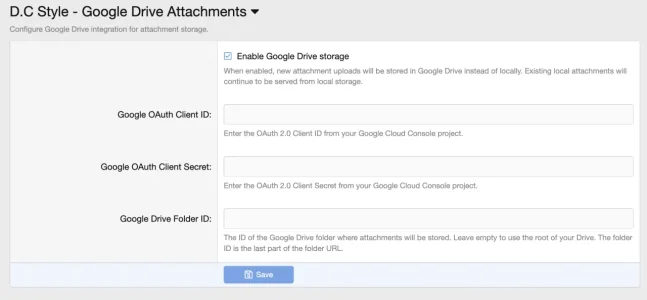
- In XenForo Admin CP, go to Setup > Options > Google Drive Attachments.
- Enter your Client ID and Client Secret.
- Optionally, enter a Google Drive Folder ID to store attachments in a specific folder.
- Save the options.
Step 6: Authorize the Connection
- Go to Google Drive Attachments in the admin sidebar (or navigate to admin.php?dc-gda/).
- Click Authorize with Google.
- Sign in with the Google account that owns the target Drive folder.
- Grant the requested permissions.
- You will be redirected back to the dashboard showing a successful connection.
Step 7: Enable and Migrate
- Return to Setup > Options > Google Drive Attachments.
- Set Enable Google Drive storage to On.
- All new attachments will now be stored on Google Drive.
Code:
php cmd.php xf-rebuild:dcGda-migrateToGoogleDrive
Code:
php cmd.php xf-rebuild:dcGda-migrateToGoogleDrive -c 20 --batch 500
Code:
php cmd.php xf-rebuild:dcGda-migrateToGoogleDrive --cleanup-local- Go to Setup > Options > Google Drive Attachments.
- Set Enable local temporary cache to On.
- Confirm the Sync local cached files to Google Drive cron entry is enabled under Setup > Cron entries. It runs every three hours.
Step 9 (optional): Restrict What Goes to Drive
- Go to Setup > Options > Google Drive Attachments.
- In File extensions to sync to Google Drive, enter one extension per line:
Code:zip rar 7z pdf mp4