
- Compatible XF 2.x versions
- 2.3
- Additional requirements
- PHP 8.0+
- Updates duration
- 25$ yearly, 1 domain
- Visible branding
- No
Introduction
Seamlessly replaces XenForo's local attachment storage with Google Drive. Once enabled, all new uploads go directly to Google Drive via the official API. Existing attachments can be migrated with a single click. Your users notice nothing — uploads, downloads, and thumbnails work exactly as before.
Key benefits:
Features
Both commands support XenForo's standard batch processing, so they can handle forums with hundreds of thousands of attachments without timing out.
Installations & Google Cloud Setup
Seamlessly replaces XenForo's local attachment storage with Google Drive. Once enabled, all new uploads go directly to Google Drive via the official API. Existing attachments can be migrated with a single click. Your users notice nothing — uploads, downloads, and thumbnails work exactly as before.
Key benefits:
- Reclaim server storage — attachments live in Google Drive, not on your disk
- Scale without limits — Google Drive offers up to 5TB per account on business plans
- Cloud reliability — Google's infrastructure handles redundancy, backups, and uptime
- Zero user friction — completely transparent; the forum experience is unchanged
Features
Seamless Storage Replacement
Replaces both data:// and internal-data:// filesystem mounts transparently. Every attachment — full files, thumbnails, and retina thumbnails — is stored on Google Drive. XenForo's core attachment system continues to work without modification, so all existing functionality (inline images, lightbox, download counts) is preserved.Secure OAuth 2.0 Authentication
Connects to Google Drive through a proper OAuth 2.0 authorization flow. Tokens are stored securely in the database with automatic refresh — once authorized, the connection stays active indefinitely without manual re-authentication. CSRF protection via state parameter validation ensures the OAuth callback cannot be forged.Shared Drive / Team Drive Support
Automatically detects whether the configured folder belongs to a Shared Drive (Team Drive) and adjusts all API calls accordingly. Works equally well with personal Google Drive folders and organizational Shared Drives, making it suitable for both small communities and enterprise deployments.Smart Chunked Uploads
Files larger than 5MB are uploaded using Google's resumable upload protocol in 5MB chunks. This prevents memory exhaustion on large attachments and allows reliable uploads even on connections with limited bandwidth. Smaller files use efficient single-request uploads for speed.Admin Control Panel Dashboard
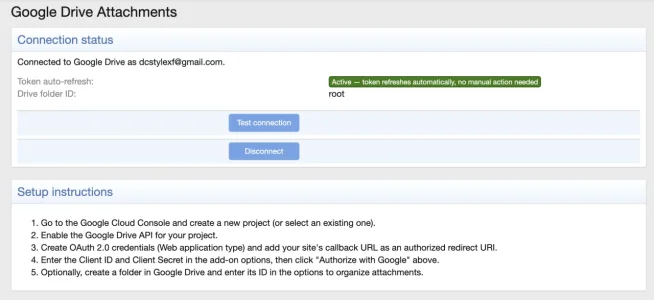
A dedicated dashboard page shows your connection status at a glance: connected account email, auto-refresh token status, configured storage folder, and quick setup instructions. Authorize, test, or disconnect your Google Drive connection without leaving the admin panel.Test Connection
Verify your Google Drive configuration with one click. The test confirms API access to your configured folder (or Shared Drive) and reports the folder name, so you know the connection is working before enabling the add-on.Bi-directional Migration
Migrate existing attachments from local storage to Google Drive — or back again — directly from the admin panel. The migration processes every attachment in your forum (files, thumbnails, and retina thumbnails), tracking progress with clear counters:- Migrated — successfully transferred to the destination
- Skipped — already exists at the destination or missing at the source
- Failed — encountered an error during transfer
CLI Commands
Run migrations from the command line for large forums or automated workflows:
Code:
php cmd.php xf-rebuild:dcGda-migrateToGoogleDrive
php cmd.php xf-rebuild:dcGda-migrateToLocalConfigurable Storage Folder
Store attachments in any Google Drive folder by entering its folder ID. Leave it blank to use the Drive root. This lets you organize your forum's attachments separately from other Drive content. To find a folder ID, simply open the folder in Google Drive and copy the ID from the URL.Graceful Fallback
If Google Drive is unreachable, the add-on is disabled, or credentials are missing, XenForo automatically falls back to local storage. Your forum never goes down because of a Google API issue. This also means you can safely disable the add-on at any time without breaking existing uploads.Performance Optimized
An in-memory path-to-fileId cache reduces redundant Google Drive API calls during a single request cycle. Folder structures are created incrementally and cached, so repeated uploads to the same directory path avoid unnecessary lookups.Installations & Google Cloud Setup
Step 1: Install the Add-on
Install the add-on via Admin CP > Add-ons > Install/upgrade from archive or run:php cmd.php xf-addon:install DC/GDAStep 2: Create a Google Cloud Project
- Go to the Google Cloud Console.
- Create a new project (or select an existing one).
- Navigate to APIs & Services > Library.
- Search for Google Drive API and click Enable.
Step 3: Configure the OAuth Consent Screen
- Go to APIs & Services > OAuth consent screen.
- Select External user type (or Internal if using Google Workspace).
- Fill in the required fields: app name, user support email, and developer contact email.
- Add the scope: https://www.googleapis.com/auth/drive (Google Drive full access).
- Save and continue through the remaining steps.
Step 4: Create OAuth 2.0 Credentials
- Go to APIs & Services > Credentials.
- Click Create Credentials > OAuth client ID.
- Select Web application as the application type.
- Under Authorized redirect URIs, add:
https://yourforum.com/admin.php?dc-gda/callback
Replace yourforum.com with your actual forum domain. - Click Create and note the Client ID and Client Secret.
Step 5: Configure the Add-on
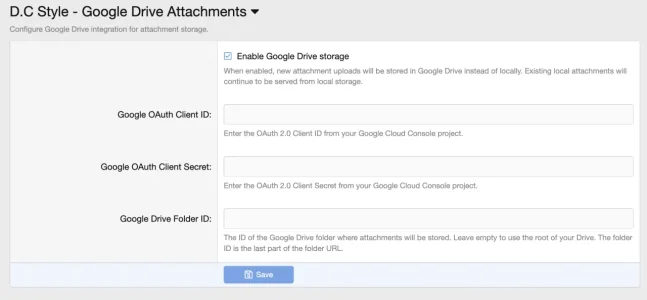
- In XenForo Admin CP, go to Setup > Options > Google Drive Attachments.
- Enter your Client ID and Client Secret.
- Optionally, enter a Google Drive Folder ID to store attachments in a specific folder.
- Save the options.
Step 6: Authorize the Connection
- Go to Google Drive Attachments in the admin sidebar (or navigate to
admin.php?dc-gda/). - Click Authorize with Google.
- Sign in with the Google account that owns the target Drive folder.
- Grant the requested permissions.
- You will be redirected back to the dashboard showing a successful connection.
Step 7: Enable and Migrate
- Return to Setup > Options > Google Drive Attachments.
- Set Enable Google Drive storage to On.
- All new attachments will now be stored on Google Drive.
- (Optional) To migrate existing attachments, go to the dashboard and click Migrate to Google Drive, or run:
php cmd.php xf-rebuild:dcGda-migrateToGoogleDrive