- Compatible XF 2.x versions
- 2.0
- 2.1
- 2.2
- 2.3
We all enjoy reading quotes, right? I liked this one:

This guide will walk you through the steps on how to do that. The information below will get you up and running fairly quickly, and also give you enough information to inspire changes that better suit your site.
But, before I get started, I want to acknowledge The Man, The Legend, The Artist known simply as@Brogan @Paul B. This guide uses his Randomising content Bro-guide Paul-B-guide as the secret ingredient that makes this work. @Paul B was even the first (afaik) to offer a random quote 'Bro-tweak' - Add a random quote block to the sidebar - for XF1, almost 15 years ago to the day. We don't see @Paul B around as much as we used to. You know, I sometimes muse that he left us because he has taught us all we need to know, and now it's simply up to us to understand. 
OK, to start, here are a couple of screenshots of what we'll end up with. This guide creates some simple XF Template code that goes into a HTML widget, which means it should work with your style/s out-of-the-box.


There are multitudes of websites that offer quote listings. You might want famous authors, famous movie lines, inspirational quotes, dystopian quotes, political quotes, funny quotes, quotes from games or gamers, quotes from your own users, a mixed bag of quotes, whatever. The world is your oyster.
If you're like me, you'll end up with A LOT of quotes. My current quote list has 289 entries. I will add more. To that end, you should save your quotes and authors into a text file, as it will help you keep track of them.
I have attached a bash shell script which will help you convert your list of quotes into the XF Template code. You don't have to use it to make this widget work, but I found it made the whole process faster with a long list of quotes. I talk about the using the script in a later step. If you decide to use it, you should list your quotes in a text file in this format:
That is:
You can name the file whatever you want. I use quotefile.txt as an example.
At a minimum, you need:
Explanation:
It contains three files: srq.sh, and two quote files to get you started - orwell.txt and twain.txt.
Run the srq.sh script with the quote file as the only argument. Syntax is /path/to/srq.sh /path/to/quotefile.txt.
The output file, srq_widget_html, contains the XF Template code we will use in the widget.
Here is an example of a shell session showing how you might use this script:

Footnote to srq.sh: While I wrote it myself, it uses common bash scripting elements and structures that I feel anyone with bash experience could or would have used themselves to create this tool. So, to remove any licensing ambiguity, I am passing srq.sh into the Public Domain. Attribution, or just a "thanks" is welcomed, but not required.
Log in to the admin panel on your forum and navigate to /admin.php?widgets/.
Click the Add widget button, set the new widget's Widget definition to HTML, and then click the Add widget button.

Add a Widget key. I used simple_random_quote.
Give your widget a Title. I used Random Quote.
If you want, you can give your widget a home by selecting desired Display in positions locations. I used Forum list: Sidebar in the top position. You can skip this if you are going to embed the widget elsewhere, like a custom page node.

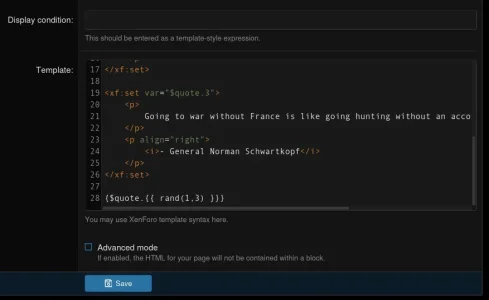
Now, copy your pre-prepared, XF Template formatted quotes, and paste them into the Template block.

Click Save, and that's it! Visit the location you placed the widget, and bask in the magnificence of the wisdom you are now bestowing on your site's visitors. May your reign be long and joyous!

Well, that's settled then. I wanted a quote widget on my forum, and if you're reading this, I figure you do, too.
This guide will walk you through the steps on how to do that. The information below will get you up and running fairly quickly, and also give you enough information to inspire changes that better suit your site.
But, before I get started, I want to acknowledge The Man, The Legend, The Artist known simply as
OK, to start, here are a couple of screenshots of what we'll end up with. This guide creates some simple XF Template code that goes into a HTML widget, which means it should work with your style/s out-of-the-box.
1. Gather your quotes.
The keyword in the title of this guide is "simple", so you only need to gather two pieces of information: the quote, and who said/wrote it (I call this the "author" throughout the remainder of the guide).There are multitudes of websites that offer quote listings. You might want famous authors, famous movie lines, inspirational quotes, dystopian quotes, political quotes, funny quotes, quotes from games or gamers, quotes from your own users, a mixed bag of quotes, whatever. The world is your oyster.
If you're like me, you'll end up with A LOT of quotes. My current quote list has 289 entries. I will add more. To that end, you should save your quotes and authors into a text file, as it will help you keep track of them.
I have attached a bash shell script which will help you convert your list of quotes into the XF Template code. You don't have to use it to make this widget work, but I found it made the whole process faster with a long list of quotes. I talk about the using the script in a later step. If you decide to use it, you should list your quotes in a text file in this format:
Code:
quote:author
quote:author
quote:author
That is:
- One entry per line. Long quotes can line wrap.
- No empty lines.
- Separate the quote and the author with a colon. This is what the script uses to split the two fields.
- Be careful of quotes that contain colons. Change them to something else - perhaps a dash, double-dash, or em-dash.
Code:
I'll be back.:The Terminator
These go to eleven.:Nigel Tufnel
Wax on. Wax off.:Mr Miyagi
I am your father.:Darth Vader
You can name the file whatever you want. I use quotefile.txt as an example.
2. The XF Template code
Whether you use the attached script or not, you need to create the code to use in your widget.At a minimum, you need:
- <xf:set var="$quote.x"> and </xf:set> tags. One set for each quote.
- Add your own styling in between them.
- {$quote.{{ rand(1,x) }}} as the last line.
PHP:
<xf:set var="$quote.1">
    <p>
        Never argue with stupid people, they will drag you down to their level and then beat you with experience.
    </p>
    <p align="right">
        <i>- Mark Twain</i>
    </p>
</xf:set>

<xf:set var="$quote.2">
    <p>
        Politicians and diapers must be changed often, and for the same reason.
    </p>
    <p align="right">
        <i>- Mark Twain</i>
    </p>
</xf:set>

<xf:set var="$quote.3">
    <p>
        Going to war without France is like going hunting without an accordion.
    </p>
    <p align="right">
        <i>- General Norman Schwartzkopf</i>
    </p>
</xf:set>

{$quote.{{ rand(1,3) }}}
Explanation:
- There are three quotes - each labelled with unique and sequential integers starting from 1.
- The quote has default styling. The author is right aligned and italicised, with a dash and space placed before the name.
- The final line is where the magic of @Paul B happens. The rand(start,end) function randomly generates an integer within, and including, the start/end range. This then displays the quote with that number. For our purposes, 'start' is always 1, and 'end' is set to the highest numbered quote. (For example, mine is currently set to rand(1,289)).
3. Using my XF Template code script - srq.sh.
Assumptions:- You have an environment that can run bash scripts, such as a Linux terminal.
- You want to use this script.
- Your quote file is prepared and in the format given above.
It contains three files: srq.sh, and two quote files to get you started - orwell.txt and twain.txt.
Run the srq.sh script with the quote file as the only argument. Syntax is /path/to/srq.sh /path/to/quotefile.txt.
The output file, srq_widget_html, contains the XF Template code we will use in the widget.
Here is an example of a shell session showing how you might use this script:
Footnote to srq.sh: While I wrote it myself, it uses common bash scripting elements and structures that I feel anyone with bash experience could or would have used themselves to create this tool. So, to remove any licensing ambiguity, I am passing srq.sh into the Public Domain. Attribution, or just a "thanks" is welcomed, but not required.
4. Create the widget.
We're nearly done!Log in to the admin panel on your forum and navigate to /admin.php?widgets/.
Click the Add widget button, set the new widget's Widget definition to HTML, and then click the Add widget button.
Add a Widget key. I used simple_random_quote.
Give your widget a Title. I used Random Quote.
If you want, you can give your widget a home by selecting desired Display in positions locations. I used Forum list: Sidebar in the top position. You can skip this if you are going to embed the widget elsewhere, like a custom page node.
Now, copy your pre-prepared, XF Template formatted quotes, and paste them into the Template block.
Click Save, and that's it! Visit the location you placed the widget, and bask in the magnificence of the wisdom you are now bestowing on your site's visitors. May your reign be long and joyous!
Epilogue
There is scope to expand the idea of this widget to include additional fields, such as displaying an image and so on. I have no intention of doing it at this time as what I have shown here is all I need. If you do expand things, I'd love to know, though. Please drop a few lines in the discussion to tell us all.